Engineering and technology notes

HowTo: Configure an APC UPS to communicate with your Ubuntu Desktop or Server | The HyRax Macrocosm

HowTo: Configure an APC UPS to communicate with your Ubuntu Desktop or Server

It’s been a while since I’ve written something here, so time to break the drought.

APC make some great UPS products and they all have the ability to communicate with a host PC to advise of its state, eg: on mains, on battery, fault, etc. The support software is available aplenty for Windows and Mac, but what about Linux?

This guide will show you how to hook up an APC UPS to an Ubuntu-based Desktop or Server PC and allow your UPS to email you when mains power has failed, when mains power has been restored, and also give your PC ample opportunity to shutdown when battery on the UPS gets to a critical low.

Pre-requisites:

  • Ubuntu-based PC. I am using Ubuntu 10.04 Lucid Lynx in this guide.
  • An APC UPS. I’m using a Back-UPS RS 800 in this guide.
  • Details about your ISP’s mail server, or your own local mail server.

Configuration:

  1. Setup your APC UPS as outlined in the instruction manual. Ensure that the USB or serial cable is connected from the UPS to the PC. This is what the UPS uses to communicate with the PC.
    .
  2. On your Ubuntu PC, go into a Terminal. If you are using Ubuntu Desktop, you can do this by going to the Applications menu, then Accessories and then Terminal. If you are using Ubuntu Server, simply login to your server by the console or SSH in remotely.
    .
  3. The Ubuntu repositories contain a UPS daemon specifically designed with APC UPS units in mind called APCUPSD, so let’s install it:
    $ sudo apt-get install apcupsd
  4. Once installed, we need to configure it to suit your UPS. Bring up the configuration file by typing in:
    $ sudo nano /etc/apcupsd/apcupsd.conf
  5. In the editor, scroll down to UPSNAME and give the UPS a name, eg:
    UPSNAME MyAwesomeUPS
  6. Scroll down to UPSCABLE and change the parameter to the type of cable you are using to connect to your UPS. In my case, I use a USB cable that came with the UPS, so I changed this line to read:
    UPSCABLE usb
  7. The next line to modify is the UPSTYPE line. Again, because I’m using USB I specify:
    UPSTYPE usb

    If you have a DEVICE /dev/ttyS0 line after the UPSTYPE line, comment it out by adding a hash symbol at the start of the line like so:

    #DEVICE /dev/ttyS0
  8. We do not need to modify anything else, so press CTRL+X, then “Y” and then Enter to save your changes and exit the Nano text editor.
    .
  9. Now we need to tell the system that the UPS daemon has been setup and is essentially ready to go. Type in:
    $ sudo nano /etc/default/apcupsd
  10. In the file that appears, modify the ISCONFIGURED line to say Yes”, ie:
    ISCONFIGURED=yes
  11. Press CTRL+X, then “Y” and then Enter to save your changes and exit.
    .
  12. We’re pretty much done here. Start the daemon now with the following command:
    $ sudo service apcupsd restart

    …or simply reboot your PC. Your PC is now monitoring the state of the UPS.
    .

  13. Let’s check the UPS now. Type in the following command:
    $ apcaccess

    …and you will get output similar to the following:

    $ apcaccess
    APC      : 001,043,1045
    DATE     : Tue Feb 01 00:02:36 EST 2011
    HOSTNAME : lamaar
    VERSION  : 3.14.6 (16 May 2009) debian
    UPSNAME  : LAMAAR
    CABLE    : USB Cable
    MODEL    : Back-UPS BR  800
    UPSMODE  : Stand Alone
    STARTTIME: Mon Jan 31 23:43:37 EST 2011
    STATUS   : ONLINE
    LINEV    : 250.0 Volts
    LOADPCT  :  40.0 Percent Load Capacity
    BCHARGE  : 100.0 Percent
    TIMELEFT :  19.9 Minutes
    MBATTCHG : 5 Percent
    MINTIMEL : 3 Minutes
    MAXTIME  : 0 Seconds
    OUTPUTV  : 230.0 Volts
    SENSE    : Medium
    DWAKE    : 000 Seconds
    DSHUTD   : 000 Seconds
    LOTRANS  : 194.0 Volts
    HITRANS  : 264.0 Volts
    RETPCT   : 000.0 Percent
    ITEMP    : 29.2 C Internal
    ALARMDEL : Always
    BATTV    : 27.4 Volts
    LINEFREQ : 50.0 Hz
    LASTXFER : Low line voltage
    NUMXFERS : 0
    TONBATT  : 0 seconds
    CUMONBATT: 0 seconds
    XOFFBATT : N/A
    SELFTEST : NO
    STATFLAG : 0x07000008 Status Flag
    SERIALNO : xxxxxxxxxxxx  
    BATTDATE : 2001-09-25
    NOMOUTV  : 230 Volts
    NOMINV   : 230 Volts
    NOMBATTV :  24.0 Volts
    NOMPOWER : 540 Watts
    FIRMWARE : 9.o5 .I USB FW:o5
    APCMODEL : Back-UPS BR  800
    END APC  : Tue Feb 01 00:02:41 EST 2011
    $
  14. Pat yourself on the back, you’re basically done.

But hang on, what about setting up email notifications? Read on.

Setting up Email Notifications

By default, APCUPSD is configured to use sendmail to send emails, but sendmail is finicky. There is a better way using a similar application called sendemail instead.

Why use sendemail instead of sendmail? Well, sendemail is a simple command-line SMTP client. You construct a simple message with a recipient and off it goes, but the key difference here is that sendemail is a CLIENT, not a SERVER. This means for sendemail to work, you need a third-party mail server to send it through. You may already have a mail server on your network running Postfix or similar. If not, your ISP will most certainly have one that you can use.

  1. Let’s start by installing sendemail:
    $ sudo apt-get install sendemail
  2. Now we need to configure apcupsd to use it. If you have a look inside the /etc/apcupsd directory, you will see several important files as follows:
    • changeme – notifies you if the UPS battery needs changing.
    • commfailure – notifies you if the PC loses communication with the UPS.
    • commok – notifies you if lost communication is restored with the UPS.
    • onbattery – notifies you if the UPS engages battery mode due to mains power failure.
    • offbattery – notifies you if the UPS returns to mains mode after a mains power failure.
      .
  3. Let’s modify the onbattery message:
    $ sudo nano /etc/apcupsd/onbattery
  4. You will notice there are some lines in this file that define some variables followed by a message and then finally a command that sends an email using the sendmail app. Since we are not using sendmail, we need to modify a number of areas. Replace the content of the entire text file with the following:
    #!/bin/sh
    #
    # This shell script if placed in /etc/apcupsd
    # will be called by /etc/apcupsd/apccontrol when the UPS
    # goes on batteries.
    #
    SYSADMIN=jbloggs@mydomain.com.au
    APCUPSD_MAIL="/usr/bin/sendemail"
    HOSTNAME=`hostname`
    MSG="Ubuntu PC Power Failure !!!"
    #
    (
    echo " "
    echo " ====================================="
    echo " POWER FAILURE ON $HOSTNAME !!"
    echo " ====================================="
    echo " "
    echo " The UPS on your Ubuntu PC has experienced a power problem that has required the UPS to engage battery mode."
    echo " "
    echo " Do not panic! Remain calm..."
    echo " "
    echo "Current UPS status:"
    echo " "
    /sbin/apcaccess status
    ) | $APCUPSD_MAIL -u "$MSG" -f MyUbuntuPC@mydomain.com.au -t $SYSADMIN -s mail.myisp.com:25
    exit 0

    So what have we done here? The first part of the file sets some variables, namely the email address(es) of the people required to be notified. If you need to send to more than one recipient, separate email addresses with a comma, eg:

    SYSADMIN=jbloggs@mydomain.com.au,fredsmith@thatotherdomain.com

    We then define the path to the sendemail app, the hostname of the PC running the UPS daemon, a subject line for the email in question, and then a big email body explaining what’s going on, in this case that the UPS battery mode has been engaged.

    All this is then piped into the sendemail application with a fake sender’s address to give you an idea where it came from and we also specify the mail server that the email will be sent via. In this case, we are using our ISP’s mail server that has the address mail.myisp.com
    .

  5. Save your changes by pressing CTRL+X, then “Y” and then Enter.
    .
  6. You can now test the script by simply executing it (we don’t have to disconnect the UPS’ mains cable to trigger this until we’re ready to test that). Execute the file using the command:
    $ sh /etc/apcupsd/onbattery
  7. Check for any errors and then check to see if you got an email in your mailbox advising that the UPS is on battery (the UPS of course is not, we’re just testing the email).
    .
  8. If all is well, continue to change the other four message files to be similar to the above, changing the message as you go of course.
    .
  9. Pat yourself on the back – you now have custom, explicit messages to let you know what’s going on with the UPS.

Setting up your own mail server to use instead

If, in your testing, you discover that your ISP’s mail server does not allow you to randomly spam messages to it using fake from addresses, you have two choices – either specify a valid email address as the sender’s address, or you can setup a simple email server of your own using Postfix:

$ sudo apt-get install postfix

In the case of setting up your own email server, simply go with Postfix and set it up as an “Internet Site”. The basic configuration is good enough to deal with our needs, but make sure your basic network security is adequate to prevent outsiders from trying to use your mail server to send unsolicited mails, or spam, through it.

This article will not describe how to setup or secure Postfix as it is beyond the scope of this article, however you do need to modify the outgoing mail server name in all your communication messages to reflect the change of name or internal IP address of your mail server instead of mail.myisp.com.

Testing

You can test your daemon setup easily enough by doing any of the following:

  • Remove mains power cable from UPS.
  • Remove the USB cable to the UPS.
  • Verify that an email is sent for either of the error conditions above.

Enjoy! Smilie: :)

Source: HowTo: Configure an APC UPS to communicate with your Ubuntu Desktop or Server | The HyRax Macrocosm

Raspberry Pi • View topic – Project idea: Vehicle Speed Detection with a camera

Hello everyone, The neighborhood that I live in has a problem with people speeding and I would like to find a way to easily monitor the speed of cars going by my house. I would like to use a camera connected to the pi to detect when a object enters/exits the viewing area and the pi determine the speed and save it to a database. Any ideas on how feasible this would be and how to do it? Thanks in advance for any help….

Source: Raspberry Pi • View topic – Project idea: Vehicle Speed Detection with a camera

Glade – A User Interface Designer

What is Glade?

Glade is a RAD tool to enable quick & easy development of user interfaces for the GTK+toolkit and the GNOMEdesktop environment.

The user interfaces designed in Glade are saved as XML, and by using the GtkBuilder GTK+ object these can be loaded by applications dynamically as needed.

By using GtkBuilder, Glade XML files can be used in numerous programming languages including C, C++, C#, Vala, Java, Perl, Python,and others.

Glade is Free Software released under the GNU GPL License

Source: Glade – A User Interface Designer

The GTK+ Project

What is GTK+, and how can I use it?

GTK+, or the GIMP Toolkit, is a multi-platform toolkit for creating graphical user interfaces. Offering a complete set of widgets, GTK+ is suitable for projects ranging from small one-off tools to complete application suites.

Where can I use it?
Everywhere! GTK+ is cross-platform and boasts an easy to use API, speeding up your development time. Take a look at the screenshots to see a number of platforms GTK+ will run.
What languages are supported?
GTK+ is written in C but has been designed from the ground up to support a wide range of languages, not only C/C++. Using GTK+ from languages such as Perl and Python (especially in combination with the Glade GUI builder) provides an effective method of rapid application development.
Are there any licensing restrictions?
GTK+ is free software and part of the GNU Project. However, the licensing terms for GTK+, the GNU LGPL, allow it to be used by all developers, including those developing proprietary software, without any license fees or royalties.

Get an overview of GTK+. Understand who started it, the basic architecture and why we use the license we do.

GTK+ has been involved in many projects and some big platforms. To get a glimpse of what people think of GTK+ and how it has been used in commercial projects, read the success stories…

To find out how more about what GTK+ can do for you, visit our features page. If you want to contribute, you are more than welcome.

Source: The GTK+ Project

5. Layout Containers — Python GTK+ 3 Tutorial 3.4 documentation

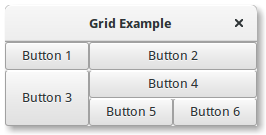
While many GUI toolkits require you to precisely place widgets in a window, using absolute positioning, GTK+ uses a different approach. Rather than specifying the position and size of each widget in the window, you can arrange your widgets in rows, columns, and/or tables. The size of your window can be determined automatically, based on the sizes of the widgets it contains. And the sizes of the widgets are, in turn, determined by the amount of text they contain, or the minimum and maximum sizes that you specify, and/or how you have requested that the available space should be shared between sets of widgets. You can perfect your layout by specifying padding distance and centering values for each of your widgets. GTK+ then uses all this information to resize and reposition everything sensibly and smoothly when the user manipulates the window.GTK+ arranges widgets hierarchically, using containers. They are invisible to the end user and are inserted into a window, or placed within each other to layout components. There are two flavours of containers: single-child containers, which are all descendants of Gtk.Bin, and multiple-child containers, which are descendants of Gtk.Container. The most commonly used are vertical or horizontal boxes (Gtk.Box) and grids (Gtk.Grid).

Source: 5. Layout Containers — Python GTK+ 3 Tutorial 3.4 documentation

13. ComboBox — Python GTK+ 3 Tutorial 3.4 documentation

A Gtk.ComboBox allows for the selection of an item from a dropdown menu. They are preferable to having many radio buttons on screen as they take up less room. If appropriate, it can show extra information about each item, such as text, a picture, a checkbox, or a progress bar.Gtk.ComboBox is very similar to Gtk.TreeView, as both use the model-view pattern; the list of valid choices is specified in the form of a tree model, and the display of the choices can be adapted to the data in the model by using cell renderers. If the combo box contains a large number of items, it may be better to display them in a grid rather than a list. This can be done by calling Gtk.ComboBox.set_wrap_width().The Gtk.ComboBox widget usually restricts the user to the available choices, but it can optionally have an Gtk.Entry, allowing the user to enter arbitrary text if none of the available choices are suitable. To do this, use one of the static methods Gtk.ComboBox.new_with_entry() or Gtk.ComboBox.new_with_model_and_entry() to create an Gtk.ComboBox instance.For a simple list of textual choices, the model-view API of Gtk.ComboBox can be a bit overwhelming. In this case, Gtk.ComboBoxText offers a simple alternative. Both Gtk.ComboBox and Gtk.ComboBoxText can contain an entry.

Source: 13. ComboBox — Python GTK+ 3 Tutorial 3.4 documentation

Mathematica 10 – now available for your Pi! – Raspberry Pi

Liz: If you use Raspbian, you’ll have noticed that Mathematica and the Wolfram Language come bundled for free with your Raspberry Pi. (A little boast here: we were only the second computer ever on which Mathematica has been included for free use as standard. The first? Steve Jobs’s NeXT, back in 1988.)  Earlier in July, Wolfram Research announced a big update to Mathematica, with the introduction of Mathematica 10. Here’s a guest post announcement from Arnoud Buzing at Wolfram about what the new Mathematic

Source: Mathematica 10 – now available for your Pi! – Raspberry Pi

Banana Pi

The Banana Pi is a series of credit card-sized single-board computers based on a low cost concept for inner software and hardware development and school software learning such as Scratch. Its hardware design was influenced by Raspberry Pi in 2013. It is produced by the Chinese company Shenzhen SINOVOIP Co.,Ltd. Banana Pi software is compatible with Raspberry Pi boards. Banana Pi also can run NetBSD, Android, Ubuntu, Debian, Arch Linux, Raspbian operating systems, though the CPU complies with the requiremen

Source: Banana Pi – Wikipedia

mpc(1) – Linux man page

Name

mpc – Program for controlling Music Player Daemon (MPD)

Synopsis

mpc [options] <command> [<arguments>]

Description

mpc is a client for MPD, the Music Player Daemon. mpc connects to a MPD and controls it according to commands and arguments passed to it. If no command is given, the current status is printed (same as ‘mpc status’).

Options

-f,–format
Configure the format of song display for status and the playlist. The metadata delimiters are “%name%”, “%artist%”, “%album%”, “%title%”, “%track%”, “%time%”, and “%file%”. The [] operator is used to group output such that if no metadata delimiters are found or matched between ‘[‘ and ‘]’, then none of the characters between ‘[‘ and ‘]’ are output. ‘&’ and ‘|’ are logical operators for and and or. ‘#’ is used to escape characters. Some useful examples for format are: “%file%” and “[[%artist% – ]%title%]|[%file%]”. This command also takes the following defined escape sequences:
\\ – backslash
\a – alert
\b – backspace
\t – tab
\n – newline
\v – vertical tab
\f – form-feed
\r – carriage return
–wait
Wait for operation to finish (e.g. database update).
-q,–quiet,–no-status
Prevents the current song status from being printed on completion of some of the commands.
-v,–verbose
Verbose output.
-h,–host
The host to connect to; if not given, the value of the environment variable MPD_HOST is checked before defaulting to localhost. This default can be changed at compile-time.To use a password, provide a value of the form “password@host”.

If you specify an absolute path, mpc attempts a connection via Unix Domain Socket.

-p,–port
The port to connect to; if not given, the value of the environment variable MPD_PORT is checked before defaulting to 6600. This default can be changed at compile-time.

Commands

add <file>
Adds a song from the music database to the playlist. Can also read input from pipes. Use “mpc ls | mpc add” to add all files to the playlist.
clear
Empties playlist.
crop
Remove all songs except for the currently playing song.
current
Show the currently playing song
crossfade [<seconds>]
Gets and sets the current amount of crossfading between songs (0 disables crossfading).
del <songpos>
Removes a playlist number from the playlist. Can also read input from pipes (0 deletes the current playing song).
disable <output #>
Disables the output, number is required.
enable <output #>
Enables the output, number is required.
idle [events]
Waits until an event occurs. Prints a list of event names, one per line. See the MPD protocol documentation for further information.If you specify a list of events, only these events are considered.
idleloop [events]
Similar to “idle”, but re-enters “idle” state after events have been printed.If you specify a list of events, only these events are considered.
listall [<file>]
Lists <file> from playlist. If no <file> is specified, lists all songs.
load <file>
Loads <file> as playlist.
ls [<directory>]
Lists all files/folders in <directory>. If no <directory> is specified, lists all files in music directory.
lsplaylists
Lists available playlists.
move <from> <to>
Moves song at position <from> to the position <to> in the playlist.
next
Starts playing next song on playlist.
outputs
Lists all available outputs
pause
Pauses playing.
play <position>
Starts playing the song-number specified. If none is specified, plays number 1.
playlist
Prints entire playlist.
prev
Starts playing previous song.
random <on|off>
Toggle random mode if state (“on” or “off”) is not specified.
repeat <on|off>
Toggle repeat mode if state (“on” or “off”) is not specified.
replaygain [<off|track|album>]
Sets the replay gain mode. Without arguments, it prints the replay gain mode.
single <on|off>
Toggle single mode if state (“on” or “off”) is not specified.
consume <on|off>
Toggle consume mode if state (“on” or “off”) is not specified.
rm <file>
Deletes a specific playlist.
save <file>
Saves playlist as <file>.
search <type> <query> [<type> <query>]…
Searches for songs where all of the given tag <type>s match the given <query>s. Any number of tag type and query combinations can be specified. Possible tag types are: artist, album, title, track, name, genre, date, composer, performer, comment, disc, filename, or any (to match any tag).
find <type> <query> [<type> <query>]…
Same as search, but match <query>s exactly.
findadd <type> <query> [<type> <query>]…
Same as find, but add the result to the current playlist instead of printing them.
list <type> [<type> <query>]…
Return a list of all tags of given tag <type>. Optional search <type>s/<query>s limit results in a way similar to search.
seek [+-][<HH:MM:SS>] or <[+-]<0-100>%>
Seeks by hour, minute or seconds, hours or minutes can be omitted. If seeking by percentage, seeks within the current song in the specified manner. If a “+” or “-” is used, the seek is done relative to the current song position. Absolute seeking by default.
shuffle
Shuffles all songs on the playlist.
stats
Displays statistics about MPD.
stop
Stops playing.
toggle
Toggles between play and pause. If stopped starts playing. Does not support start playing at song number (use play).
update [–wait] [<path>]
Scans music directory for updates if no <path> is specified. If one or more <path>’s are specified, scans only those path’s for updates. Can take input from a pipe.With –wait, mpc waits until MPD has finished the update.
version
Reports the version of MPD.
volume [+-]<num>
Sets the volume to <num> (0-100). If “+” or “-” is used, then it adjusts the volume relative to the current volume.

Examples

For useful examples of mpc use in playlist parsing, see mpd-m3u-playlist.sh and mpd-pls-playlist.sh.

Bugs

Report bugs on http://www.musicpd.org/mantis/

Note

Since MPD uses UTF-8, mpc needs to convert characters to the charset used by the local system. If you get character conversion errors when you’re running mpc you probably need to set up your locale. This is done by setting any of the LC_CTYPE, LANG or LC_ALL environment variables (LC_CTYPE only affects character handling).

See Also

mpd(1)

Author

See http://git.musicpd.org/cgit/master/mpc.git/plain/AUTHORS

Referenced By

mpd.conf(5), mpdscribble(1)

Source: mpc(1) – Linux man page

RPi raspi-config – eLinux.org

The raspi-config tool helps you to configure your Raspberry Pi; several settings can be changed with this tool without having to know the correct commands to use. It is written as a bash script, run in a terminal window, and uses whiptail (whiptail is a “dialog” replacement using newt instead of ncurses, see “man whiptail”) to create the windows, menus and messages. Some changes require “administrator” permissions, so the tool must be run in a terminal with:sudo raspi-configThis can be run from the command line or from a terminal window if using the GUI. Older versions of Raspbian would boot to the command line and the raspi-config tool would run on first boot after installation. Newer versions boot to the GUI and do not run raspi-config. There is a similar GUI configuration tool that can be run from the menus.Although it is already installed on Raspbian, and there is an update option within the menus, it is installed or updated from package raspi-config.

Source: RPi raspi-config – eLinux.org