Engineering and technology notes

mpc(1) – Linux man page

Name

mpc – Program for controlling Music Player Daemon (MPD)

Synopsis

mpc [options] <command> [<arguments>]

Description

mpc is a client for MPD, the Music Player Daemon. mpc connects to a MPD and controls it according to commands and arguments passed to it. If no command is given, the current status is printed (same as ‘mpc status’).

Options

-f,–format
Configure the format of song display for status and the playlist. The metadata delimiters are “%name%”, “%artist%”, “%album%”, “%title%”, “%track%”, “%time%”, and “%file%”. The [] operator is used to group output such that if no metadata delimiters are found or matched between ‘[‘ and ‘]’, then none of the characters between ‘[‘ and ‘]’ are output. ‘&’ and ‘|’ are logical operators for and and or. ‘#’ is used to escape characters. Some useful examples for format are: “%file%” and “[[%artist% – ]%title%]|[%file%]”. This command also takes the following defined escape sequences:
\\ – backslash
\a – alert
\b – backspace
\t – tab
\n – newline
\v – vertical tab
\f – form-feed
\r – carriage return
–wait
Wait for operation to finish (e.g. database update).
-q,–quiet,–no-status
Prevents the current song status from being printed on completion of some of the commands.
-v,–verbose
Verbose output.
-h,–host
The host to connect to; if not given, the value of the environment variable MPD_HOST is checked before defaulting to localhost. This default can be changed at compile-time.To use a password, provide a value of the form “password@host”.

If you specify an absolute path, mpc attempts a connection via Unix Domain Socket.

-p,–port
The port to connect to; if not given, the value of the environment variable MPD_PORT is checked before defaulting to 6600. This default can be changed at compile-time.

Commands

add <file>
Adds a song from the music database to the playlist. Can also read input from pipes. Use “mpc ls | mpc add” to add all files to the playlist.
clear
Empties playlist.
crop
Remove all songs except for the currently playing song.
current
Show the currently playing song
crossfade [<seconds>]
Gets and sets the current amount of crossfading between songs (0 disables crossfading).
del <songpos>
Removes a playlist number from the playlist. Can also read input from pipes (0 deletes the current playing song).
disable <output #>
Disables the output, number is required.
enable <output #>
Enables the output, number is required.
idle [events]
Waits until an event occurs. Prints a list of event names, one per line. See the MPD protocol documentation for further information.If you specify a list of events, only these events are considered.
idleloop [events]
Similar to “idle”, but re-enters “idle” state after events have been printed.If you specify a list of events, only these events are considered.
listall [<file>]
Lists <file> from playlist. If no <file> is specified, lists all songs.
load <file>
Loads <file> as playlist.
ls [<directory>]
Lists all files/folders in <directory>. If no <directory> is specified, lists all files in music directory.
lsplaylists
Lists available playlists.
move <from> <to>
Moves song at position <from> to the position <to> in the playlist.
next
Starts playing next song on playlist.
outputs
Lists all available outputs
pause
Pauses playing.
play <position>
Starts playing the song-number specified. If none is specified, plays number 1.
playlist
Prints entire playlist.
prev
Starts playing previous song.
random <on|off>
Toggle random mode if state (“on” or “off”) is not specified.
repeat <on|off>
Toggle repeat mode if state (“on” or “off”) is not specified.
replaygain [<off|track|album>]
Sets the replay gain mode. Without arguments, it prints the replay gain mode.
single <on|off>
Toggle single mode if state (“on” or “off”) is not specified.
consume <on|off>
Toggle consume mode if state (“on” or “off”) is not specified.
rm <file>
Deletes a specific playlist.
save <file>
Saves playlist as <file>.
search <type> <query> [<type> <query>]…
Searches for songs where all of the given tag <type>s match the given <query>s. Any number of tag type and query combinations can be specified. Possible tag types are: artist, album, title, track, name, genre, date, composer, performer, comment, disc, filename, or any (to match any tag).
find <type> <query> [<type> <query>]…
Same as search, but match <query>s exactly.
findadd <type> <query> [<type> <query>]…
Same as find, but add the result to the current playlist instead of printing them.
list <type> [<type> <query>]…
Return a list of all tags of given tag <type>. Optional search <type>s/<query>s limit results in a way similar to search.
seek [+-][<HH:MM:SS>] or <[+-]<0-100>%>
Seeks by hour, minute or seconds, hours or minutes can be omitted. If seeking by percentage, seeks within the current song in the specified manner. If a “+” or “-” is used, the seek is done relative to the current song position. Absolute seeking by default.
shuffle
Shuffles all songs on the playlist.
stats
Displays statistics about MPD.
stop
Stops playing.
toggle
Toggles between play and pause. If stopped starts playing. Does not support start playing at song number (use play).
update [–wait] [<path>]
Scans music directory for updates if no <path> is specified. If one or more <path>’s are specified, scans only those path’s for updates. Can take input from a pipe.With –wait, mpc waits until MPD has finished the update.
version
Reports the version of MPD.
volume [+-]<num>
Sets the volume to <num> (0-100). If “+” or “-” is used, then it adjusts the volume relative to the current volume.

Examples

For useful examples of mpc use in playlist parsing, see mpd-m3u-playlist.sh and mpd-pls-playlist.sh.

Bugs

Report bugs on http://www.musicpd.org/mantis/

Note

Since MPD uses UTF-8, mpc needs to convert characters to the charset used by the local system. If you get character conversion errors when you’re running mpc you probably need to set up your locale. This is done by setting any of the LC_CTYPE, LANG or LC_ALL environment variables (LC_CTYPE only affects character handling).

See Also

mpd(1)

Author

See http://git.musicpd.org/cgit/master/mpc.git/plain/AUTHORS

Referenced By

mpd.conf(5), mpdscribble(1)

Source: mpc(1) – Linux man page

RPi raspi-config – eLinux.org

The raspi-config tool helps you to configure your Raspberry Pi; several settings can be changed with this tool without having to know the correct commands to use. It is written as a bash script, run in a terminal window, and uses whiptail (whiptail is a “dialog” replacement using newt instead of ncurses, see “man whiptail”) to create the windows, menus and messages. Some changes require “administrator” permissions, so the tool must be run in a terminal with:sudo raspi-configThis can be run from the command line or from a terminal window if using the GUI. Older versions of Raspbian would boot to the command line and the raspi-config tool would run on first boot after installation. Newer versions boot to the GUI and do not run raspi-config. There is a similar GUI configuration tool that can be run from the menus.Although it is already installed on Raspbian, and there is an update option within the menus, it is installed or updated from package raspi-config.

Source: RPi raspi-config – eLinux.org

Install software | Setting up a Raspberry Pi as a WiFi access point | Adafruit Learning System

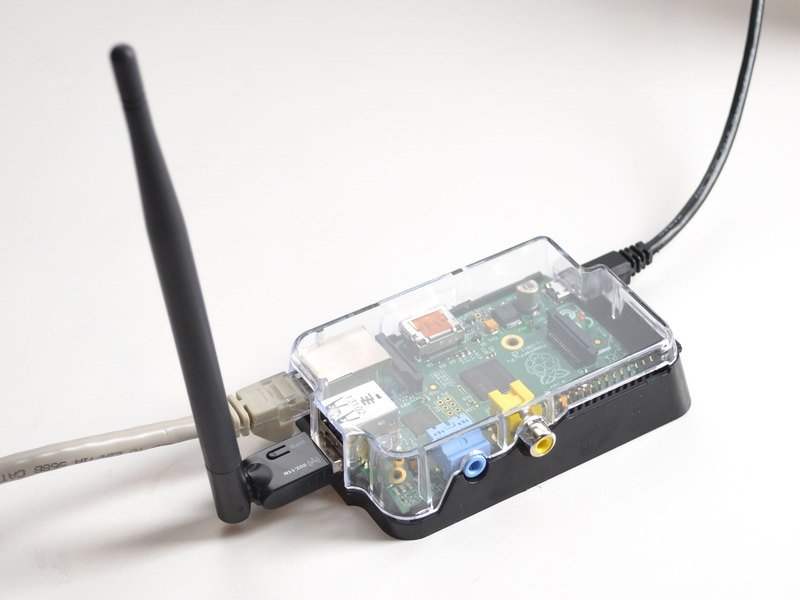
Next up we install the software onto the Pi that will act as the ‘hostap’ (host access point) You need internet access for this step so make sure that Ethernet connection is up! sudo apt-get update sudo apt-get install hostapd isc-dhcp-server (You may need to sudo apt-get update if the Pi can’t seem to get to the apt-get repositories)

Source: Install software | Setting up a Raspberry Pi as a WiFi access point | Adafruit Learning System

Hotspot – WiFi Access Point | Raspberry-at-home.com – Your ultimate source of Raspberry Pi tutorials (WiFi, 3G, XBMC, Subtitles, VoD, TVN Player, IPLA, TVP, Squeezeslave, Logitech Media Server, Sickbeard, Webcam, Torrent, DLNA)

Source: Hotspot – WiFi Access Point | Raspberry-at-home.com – Your ultimate source of Raspberry Pi tutorials (WiFi, 3G, XBMC, Subtitles, VoD, TVN Player, IPLA, TVP, Squeezeslave, Logitech Media Server, Sickbeard, Webcam, Torrent, DLNA)

European Remote Controlled Sockets with Pi-mote – ENER002-2PI-EUR | Energy Saving Products | Energenie

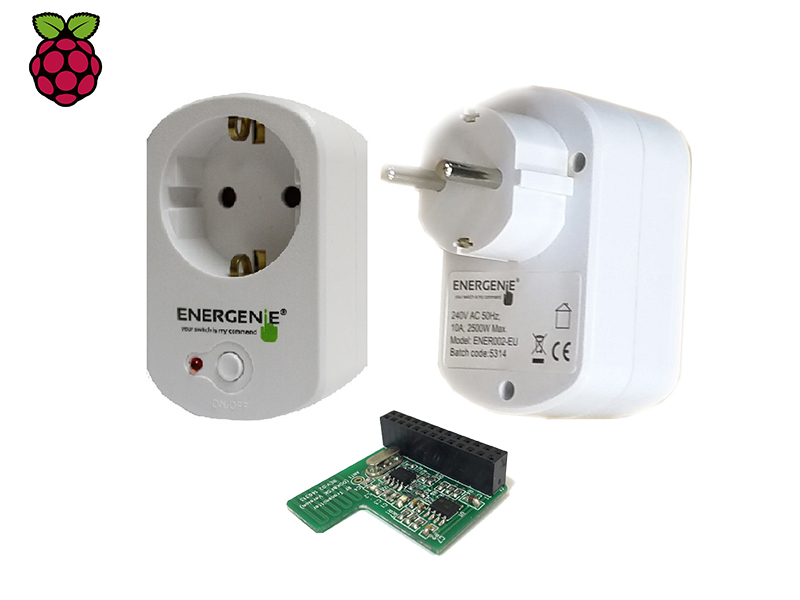
European Remote Controlled Sockets with Pi-mote – ENER002-2PI-EUR – p Energenie are proud to offer users of Raspberry Pi a low cost home control solution. /p br/ Our best-selling remote control sockets are now available with a controller board for Pi. Whether you are a Pi newcomer, hacker, or Python sage you will be able to control your electrical sockets within a range of up to 30 metres, through doors, walls and ceilings. p br/ In the pack is one Pi controller board, 2 European remote control sockets and a start up guide which shows how simple on/off control can be achieved. For advanced users the applications are only limited by your imagination. This adapter is suitable for European countries with sockets which accept the CEE 7/4 Shuko format of plug. See the GPIO Zero documentation for example usage: http://gpiozero.readthedocs.org/en/v1.2.0/api_boards.html#energenie http://gpiozero.readthedocs.org/en/v1.2.0/api_boards.html Also see the Energenie section of Ben’s blog post about the changes: http://bennuttall.com/whats-new-gpio-zero-v1-2/

Source: European Remote Controlled Sockets with Pi-mote – ENER002-2PI-EUR | Energy Saving Products | Energenie

Using the I2C Interface – Raspberry Pi Projects

Enabling The I2C PortThe I2C port needs to be enabled in Rasbian before it can be used. See here.Checking For Connected DevicesAt the command prompt type one of these depending on whether you are using the I2C0 or I2C1 port:sudo i2cdetect -y 0//orsudo i2cdetect -y 1The 7 bit I2C address of all found devices will be shown (ignoring the R/W bit, so I2C address 0000 0110 is displayed as hex 03).

Source: Using the I2C Interface – Raspberry Pi Projects

Raspberry Pi • View topic – Access Point (AP) for TP-Link TL-WN725N V2

Hi all, I have successfully configured the TP-Link TL-WN725N V2 WiFi module (chipset RTL8188EU) as an AP (access point). Have tried many tutorials out there, but none worked for me (hostapd failures with bad wifi driver). This tutorial is based upon these sources (with some exceptions): RPI-Wireless-Hotspot Wifi-hotspot-with-edimax-nano-usb Since I used the module to control a robot through WiFi, I didn’t setup a bridge to share internet connection (hotspot). If you want to share/access internet through

Source: Raspberry Pi • View topic – Access Point (AP) for TP-Link TL-WN725N V2

How-To: Raspberry Pi multiple WiFi setup through the command line

Quickly setup multiple wifi connections on your raspberry pi through the command lineStep by step illustrated guide showing you how to setup your wireless connection if you only have access to the terminalSetting it up using just the /etc/network/interfaces files can work but you will run into issues when you need multiple connections or if you ever do access the desktop environment.  Setting it up using wpa supplicant will be more reliable in the long run

Source: How-To: Raspberry Pi multiple WiFi setup through the command line

Icecast

Icecast is a streaming media project released as free software maintained by the Xiph.org Foundation. It also refers specifically to the server program which is part of the project. Icecast was created in December 1998/January 1999 by Jack Moffitt[2][3] and Barath Raghavan[3] to provide an open source audio streaming server that anyone could modify, use, and tinker with. Version 2 was started in 2001, a ground-up rewrite aimed at multi-format support (initially targeting Ogg Vorbis) and scalability; this r

Source: Icecast – Wikipedia

Setting WiFi up via the command line – Raspberry Pi Documentation

This method is suitable if you don’t have access to the graphical user interface normally used to set up WiFi on the Raspberry Pi. It’s especially suitable for use with a serial console cable if you don’t have access to a screen or wired Ethernet network. Note also that no additional software is required; everything you need is already included on the Raspberry Pi. GETTING WIFI NETWORK DETAILS To scan for WiFi networks, use the command sudo iwlist wlan0 scan. This will list all available WiFi networks, al

Source: Setting WiFi up via the command line – Raspberry Pi Documentation

Strategies to fix XBMC buffering issues on Raspberry Pi

XBMC buffering issues can be an annoyance while trying to watch a video on your HTPC. The problem amplifies if the video is of HD quality or if your HTPC has less available resources. Raspberry Pi, with only 512 MB of RAM and modest CPU power is prone to slow buffering. In this post, I will show you some ways to fix slow buffering on XBMC running on Raspberry Pi. These fixes should solve XBMC buffering problems in OpenELEC, Xbian, Raspbmc or a full-scale HTPC running XBMC. Note that some of the fixes for XBMC buffering issues listed below require XBMC 13 Gotham.

Source: Strategies to fix XBMC buffering issues on Raspberry Pi