Engineering and technology notes

Streaming webcam to HTTP using VLC | by Pete Houston | Medium

One of very common task working with webcam is to streaming it to web via HTTP. There are many ways to do it, and I will tell you how to do with VLC.

First is to make sure the webcam is connected and playing well, confirm it by,

$ vlc v4l2:///dev/video0

If you see the webcam playing on VLC, it works fine.

In VLC, to make an output stream, you will need to out –sout option with specified output module. Since we are trying to streaming out to HTTP, we will use std module with access option set to http, along with mpjpeg muxer. So, the command will be,

$ vlc v4l2:///dev/video0 --sout ‘#std{access=http,mux=mpjpeg,dst=IP:PORT}’

To confirm the output stream,

$ vlc http://IP:PORT

Well, up to this point, it just might work well for several cameras, not all. The reason is that default streaming output format from webcam often being YUYV as I mentioned in previous article.

To solve this, we can just apply the transcode module from VLC,

$ vlc v4l2:///dev/video0 --sout ‘#transcode{vcodec=mjpg}:std{access=http,mux=mpjpeg,dst=IP:PORT}’

Try to play the HTTP stream again, it should work. To make the output HTTP stream to be able to be played via web HTML5 video, MIME should be present,

$ vlc v4l2:///dev/video0 --sout ‘#transcode{vcodec=mjpg}:std{access=http{mime=multipart/x-mixed-replace;boundary=-7b3cc56e5f51db803f790dad720ed50a},mux=mpjpeg,dst=IP:PORT}’

To enable GPU (hardware-acceleration), use the chroma= option as I mentioned before.

$ vlc v4l2:///dev/video0:chroma=mjpg --sout ‘#std{access=http{mime=multipart/x-mixed-replace;boundary=-7b3cc56e5f51db803f790dad720ed50a},mux=mpjpeg,dst=IP:PORT}’

Have fun 🙂

Code / Design / Love @ https://petehouston.com

Dec 23, 2015

To force hardware-acceleration, which makes use of GPU, while playing or streaming from webcam, we need to add chroma= option to the input device. For example, if I want to force GPU for H264 codec on /dev/video0 device.

$ vlc v4l2:///dev/video0:chroma=h264

The value of chroma option is the codec, or pixelformat, supported by the webcam. So you need to check what output format supported by camera beforehand.


Dec 23, 2015

Streaming connected camera to RTSP using VLC is pretty much easy,

$ vlc v4l2:///dev/video0 --sout ‘#rtp{mux=ts,sdp=rtsp://IP:PORT/cam.sdp}’

Make sure to have camera plugged into the computer or host.

$ vlc rtsp://IP:PORT/cam.sdp

Have fun 🙂

1


Dec 23, 2015

Sometimes, you don’t want to play audio from the input, you can disable it easily via command-line by adding the option –no-audio,

$ vlc video.mp4 — no-audio

Specifically, it is useful for playing from camera, you don’t need sound and want to make an output for streaming, such as RTSP…you will need to add acodec=none to the transcode module.

$ vlc v4l2:///dev/video0 --sout ‘#transcode{acodec=none,vcodec=h264}:rtp{mux=ts,sdp=rtsp://IP:PORT/cam.sdp}’

That’s it, VLC will remove audio stream while streaming.

To view the camera connected to the computer, you can use VLC to play it with V4L2 driver.

$ vlc v4l2://

Since we don’t provide a explicit device name, VLC will look for the first available camera device, which is usually /dev/video0. If there are more connected devices, you should provide the device to play. Check the list of available device by issuing this command,

$ v4l2-ctl --list-devices
HD Pro Webcam C920 (usb-0000:00:1a.0–1.3):
 /dev/video0

and to play,

$ vlc v4l2:///dev/video0

While playing VLC will try to determine which is default supported format of camera, which is usually, YUYV

Read more · 1 min read

v4l-utils is a popular package that helps manipulate and control video device on Linux. Install this package on Debian-based distros is pretty much easy.

$ sudo apt-get update$ sudo apt-get install v4l-utils

After installation, some of v4l2 utilities should be available to use, you can confirm by issuing the following command,

$ v4l2-ctl General/Common options: — all display all information available -C, — get-ctrl=<ctrl>[,<ctrl>…] get the value of the controls [VIDIOC_G_EXT_CTRLS] -c, — set-ctrl=<ctrl>=<val>[,<ctrl>=<val>…] set the value of the controls [VIDIOC_S_EXT_CTRLS] -D, — info show driver info [VIDIOC_QUERYCAP] -d, — device=<dev> use device <dev> instead of /dev/video0 if <dev>…

Source: Streaming webcam to HTTP using VLC | by Pete Houston | Medium
CHDK quick install Guide 

This guide was based off the canon powershot s100.

It might work for other cameras but,

if it does not work for your camera visit

Prepare your SD card for more help and info.

Step 1

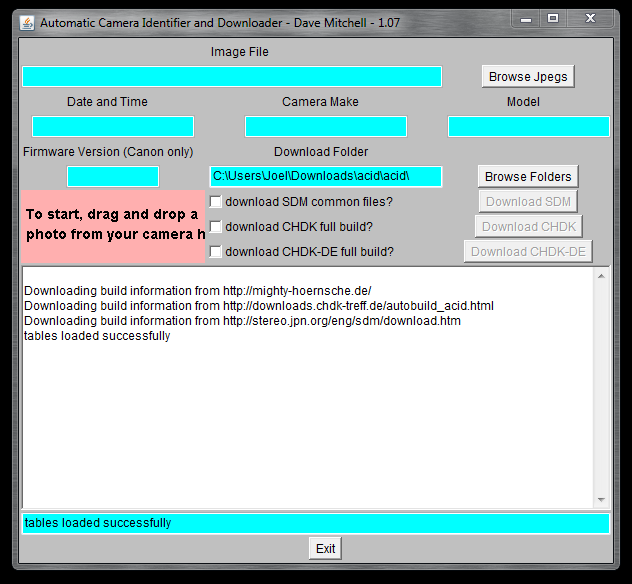
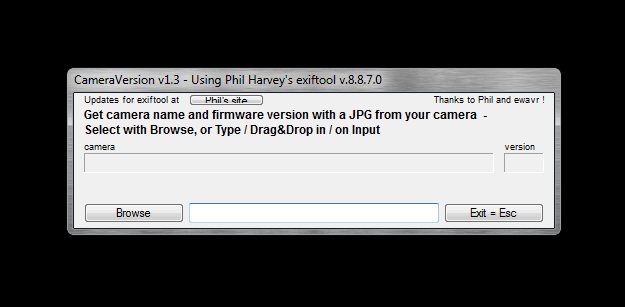
Download and run camera version 1.3 to get camera version.
http://chdk.setepontos.com/index.php?topic=4743.0
(ACID is good too by the way….I have both )

Camera Version 1.3

CameraVersion1.3

ACID

ACID

This one hangs for a bit sometimes

when you try to use it

Step 2

Browse your computer and then Open a picture taken with your

camera with the program to get your camera version number.

Step 3

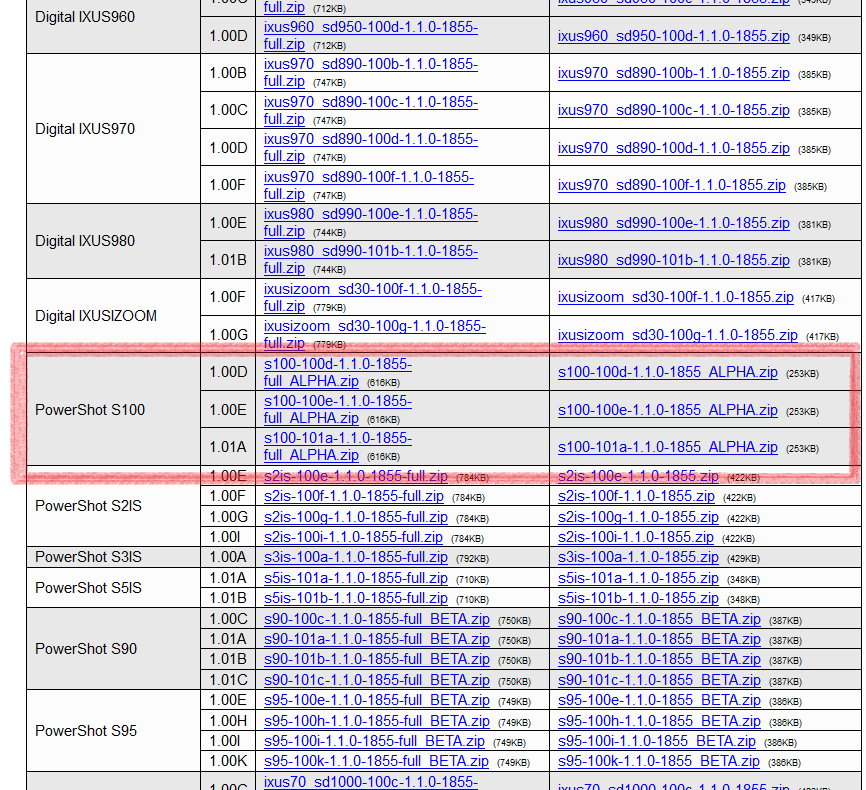
Locate and download correct CHDK version from:
http://www.mighty-hoernsche.de/trunk/

S100 trunk

Step 4

Unzip the files on your computer.

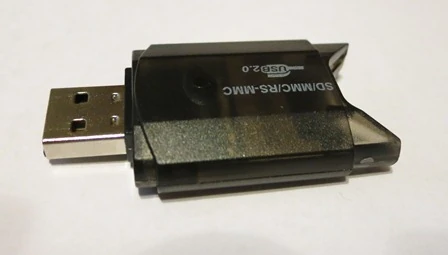
SD card reader

For the next’ few

steps you need’ an

SD card reader

step 5

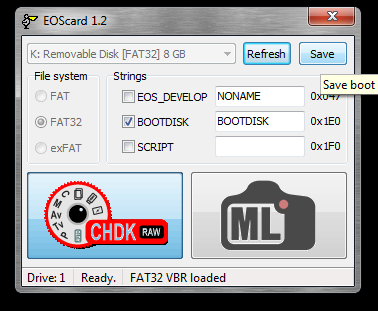
make your sd card bootable
(I used EOScard 1.2, can be found here http://pel.hu/getpage.php?ac=2 or here http://pel.hu/down/)

(Press refresh, click on chdk, then hit save, and your done)

EOScard 1.2

Step 6

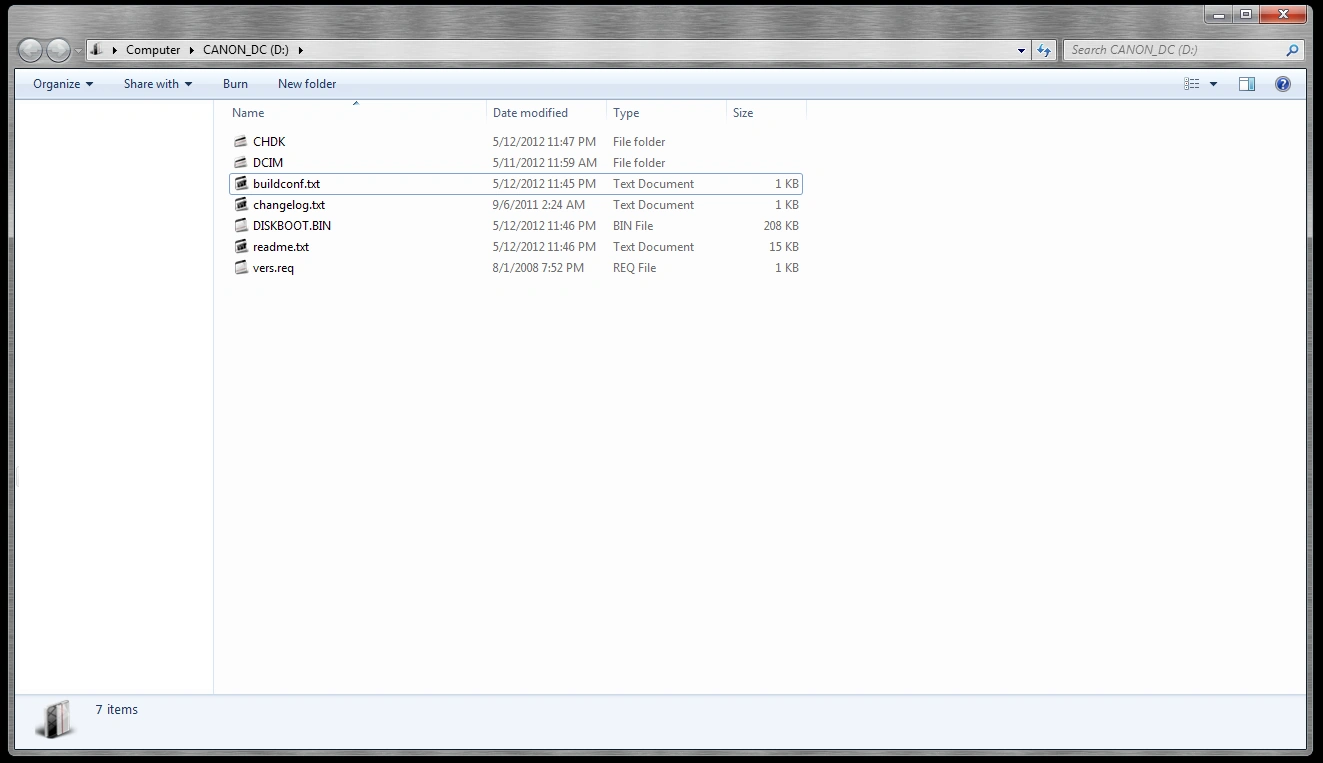
Place CHDK files on the root of the SD card.

SD card root

Step 7

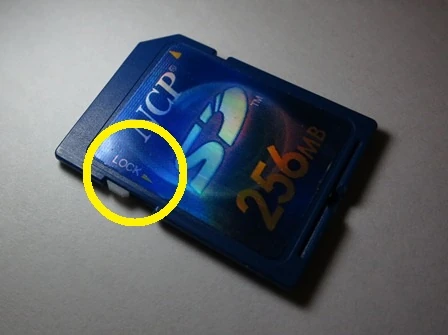
Lock the card by sliding the small switch and place the SD card in the camera.

SD card Lock switch

Step 8

A.

To start CHDK in play mode:

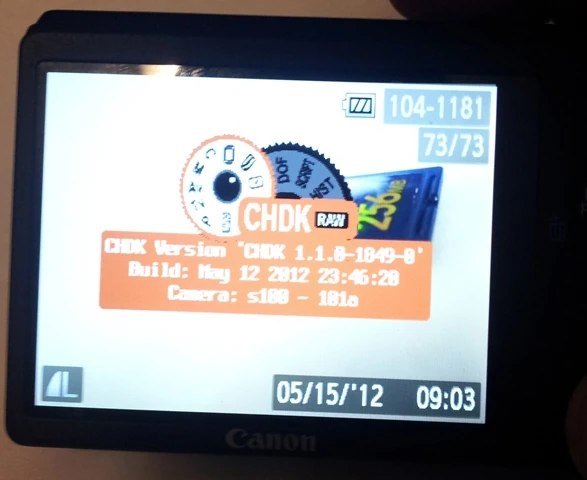
Press and hold the play button until the CHDK logo appears.

  • while in play mode half press shutter takes you to shooting mode.

B.

To start CHDK in Shooting mode (does not work on all cameras):

Press and hold on/off button until the CHDK logo appears.

  • while in shooting mode press and hold the play button to go to play mode

CHDK LOGO

Source: CHDK quick install Guide | CHDK Wiki | Fandom

Script commands | CHDK Wiki | Fandom

Additional uBASIC and Lua Scripting Commands
get_config_value
set_config_value
get_movie_status
get_video_recording
set_movie_status
get_video_button
get_display_mode
get_propset
get_zoom_steps
get_exp_count
get_drive_mode
get_flash_mode
get_flash_ready
get_IS_mode
get_orientation_sensor
get_min_av96
get_max_av96
get_nd_present
get_nd_value_ev96
get_nd_current_ev96
get_histo_range
shot_histo_enable
autostarted
get_shooting
get_ev
set_ev
get_autostart & set_autostart
get_temperature
select/case function
changed RANDOM command
playsound
print_screen
get_time
get_mode
get_quality
get_resolution
set_quality
set_resolution
get_platform_id
set_backlight()
set_lcd_display()
set_draw_title_line
get_draw_title_line
get_sd_over_modes
set_aflock
set_mf
set_aelock
set_record(state)
set_capture_mode_canon(value)
set_capture_mode(modenum)
is_capture_mode_valid(modenum)
get_capture_mode
set_console_layout
set_console_autoredraw
console_redraw
reboot([file])
restore
set_exit_key
set_yield
get_curve_file
set_curve_file
get_curve_state
set_curve_state
get_focus_mode
get_focus_state
get_focus_ok
get_focal_length
get_min_stack_dist
set_file_attributes
get_partitionInfo
swap_partitions
get_buildinfo
get_dofinfo
get_video_details
textbox
get_raw_support
get_digic
set_clock
set_focus_interlock_bypass
APEX96 Conversion Functions
iso_to_sv96
sv96_to_iso
iso_real_to_market
iso_market_to_real
sv96_real_to_market
sv96_market_to_real
aperture_to_av96
av96_to_aperture
usec_to_tv96
tv96_to_usec
seconds_to_tv96
APEX96 Example Lua Script
Live View Exposure Functions
get_imager_active
get_current_tv96
get_current_av96

Source: Script commands | CHDK Wiki | Fandom

Setup a Motion Detection Webcam in Ubuntu

Don’t you hate it when people use your computer without your permission? Worst still, your laptop is stolen and you have no idea who stole it. If your laptop comes with a webcam, you can easily set up motion detection software to find out who is using your computer when you are not around. If you have a spare computer at home, you can also use it as a surveillance camera. We have shown you how to do so in Windows, and this article will show you how to set up a motion detection webcam in Ubuntu.

The software that we are using is Motion. This is one useful tool that can monitor the video signal from a webcam and take screenshots when it detects a motion (i.e. when a significant part of the picture has changed). While we are dealing with Ubuntu in this article, Motion will work for most Linux distro as well.

Installing Motion

Motion is included in the Ubuntu repository, so you can install it by clicking here, via the Ubuntu Software Center, or by simply typing the following command in the terminal:

Configuring Motion

Before we start configuring Motion, we need to copy the config file to our Home folder so that the master copy won’t be affected. Open a terminal and copy the configuration file to your Home folder.

Note: The above commands will create a hidden folder “.motion” in your Home directory.

Once you have done the copying, you can open the file for editing.

There are plenty of options that you can customize in the config file, but there are only a few things that we are interested in. Scroll down the list to find the following settings:

Daemon – Changing this to “on” will make it run in daemon mode. Applications in daemon mode will run in the background and start automatically when the computer starts. The default option is “off” where you need to start the application manually in terminal.

motion-start-in-daemon-mode

Width – This is the width of the images taken by the webcam. The default is 320, but you can set your own value here. Note that the width is limited by your webcam’s capability. My webcam is only capable of taking images up to 350px, so a value of 320 works fine for me.

Height – The height of the images taken by the webcam. Similarly, it is limited by your webcam’s capability.

framerate – how often you want the image to be captured per second. The default is 2 (2 frames/images taken per second). The higher value you set, the more computing resources it will require.

Motion detection thresold – the number of changed pixels in an image before it is captured. The default is 1500. If you want to make it more sensitive, set it to a lower value.

motion-detection-threshold

output_normal – This will determine whether it will save the motion to images. The default option is “on,” which means pictures will be saved as long as motion is detected. You can set it to “first,” “best,” “center” to get it to save only a limited number of images. This will prevent your folder from having an overwhelming number of images. If you just need the video streaming mode, you can set it to “off” to prevent it from saving any pictures.

motion-output-normal

target_dir – This is the directory where the images are saved. If you have installed Dropbox (or any other cloud storage service), you can set the target directory to be within your Dropbox folder so you can view the images from another location.

Note: There are plenty of other options that you can config, but we won’t be covering them here.

Once you are done with the configuration, press “Ctrl + o” to save the changes and “Ctrl + x” to exit.

Starting motion

In the terminal, type:

This will start the motion server. If everything goes well, you will start seeing pictures showing up in the target directory.

motion-pictures-in-target-directory

There is also a swf live streaming video that you can open in your media player. If you are accessing from a remote location, you can access the IP address of your computer (with port 8081) to view the video (or http://localhost:8081 in your local computer). The control center is accessible at port 8080.

motion-video-access-from-browser

Managing the saved images remotely

As I mentioned earlier, the best way is to save the images into your Dropbox folder so you can access it anywhere you want. However, if you prefer to have the images uploaded to your own file server (via FTP), you can use the command wput to upload the images.

In the config file, scroll down the list till you see a field “on_picture_save value“. Change it to:

where the “user”, “password” and “server” are details that you need to fill in.

Autostart Motion on boot up

If you like Motion to autostart every time you boot up your computer, all you have to do is to add an entry to the Startup Application.

motion-in-startup-application

Conclusion

While it may seems like a complicated task, setting up a motion detection webcam in Ubuntu is actually a very easy job. What other method do you use to set up your webcam as a surveillance camera? Let us know in the comments.

Source: Setup a Motion Detection Webcam in Ubuntu

How to Use Your DSLR Camera As a Webcam in Linux

How to Use Your DSLR Camera As a Webcam in Linux

If you desire a more professional looking image when video conferencing, it turns out that you can use a Digital SLR camera as your webcam. Using a DSLR provides a number of benefits over an off-the-shelf webcam, most notably higher image quality, ability to finely adjust the frame of an image (zoom, wide angle), and adjust the depth of field. The depth of field adjustment is what allows for a nice, smooth, blurred background. It’s straightforward to get setup within Linux, this is the guide for how it’s done.

This article was originally published at Cracked the Code. Head over there for the latest updates and an improved reading experience.

Hardware Needed:

  • A camera supported by gPhoto, with Liveview capabilities
  • Ability to connect your camera to your Linux-based PC through a USB cable
  • Ideally some way to power your camera through a power supply. You can run from your camera’s battery, but run time will be limited

Software Needed:

Before Getting Started:

The configuration as detailed here works very well for most people. There are however a few important limitations to be aware of before you get started:

  1. You will not capture the full resolution of your camera’s image sensor.

This guide uses the gPhoto2 application and associated libraries, which enables you to control your camera through terminal commands. gPhoto2’s movie capture mode captures a series of preview frames from your camera and outputs them as a motion JPEG video format. The resolution of the preview frames captured from your camera varies, but will likely be less than 720p (1280×720).

It would be great to capture an HD quality image from a large, sophisticated and expensive camera, but in my experience the resolution doesn’t matter as much as you might think. The greatly enhanced optics, large image sensor, and depth of field provided by a DSLR camera contribute to a much better looking image.

2. Video capture and encoding is CPU intensive and your system may have performance issues.

I developed this guide on an AMD Ryzen 7 workstation which had the processing power to ingest and transcode the video stream from my camera with no issues. Make no mistake though, video transcoding (as we’re doing here) is CPU intensive, and some lower-powered computers will have performance issues. It’s hard to say what the minimum specs are for this guide, but an Intel i7 class processor is close to the minimum needed to use this effectively.

Software Setup:

Installing the required software can be accomplished through your distro’s package manager:

$ sudo apt-get install gphoto2 v4l2loopback-utils v4l2loopback-dkms ffmpeg
$ pacman -S gphoto2 v4l-utils v4l2loopback-dkms ffmpeg
$ sudo dnf install gphoto2 v4l2loopback ffmpeg

Once you’ve installed the required packages, connect your camera to your PC via USB and power on the camera. You can safely ignore any OS popup message which may appear.

Open your Terminal application, and enter the following command:

$ sudo modprobe v4l2loopback exclusive_caps=1 max_buffers=2

Loading this kernel module manually (through modprobe) means you will have to remember to modprobe every time you reboot. To ensure this module is enabled when your system is booted, you need to edit one config file /etc/modules, and create a new module config file /etc/modprobe.d/dslr-webcam.conf:

Add dslr-webcam as a new line at the end of /etc/modules. If you have nothing but comments in this file, just add dslr-webcam as the last line in this file.

$ sudo vi /etc/modules# /etc/modules: kernel modules to load at boot time.
#
# This file contains the names of kernel modules that should be loaded
# at boot time, one per line. Lines beginning with "#" are ignored.dslr-webcam
  • Using sudo create a new file /etc/modprobe.d/dslr-webcam.conf. Add the following content to this file, and save:
# Module options for Video4Linux, needed for our DSLR Webcamalias dslr-webcam v4l2loopback
options v4l2loopback exclusive_caps=1 max_buffers=2

Note: We’re using the alias functionality of modprobe.d to provide an alternate and more descriptive name (dslr-webcam) for our Video4Linux kernel module.

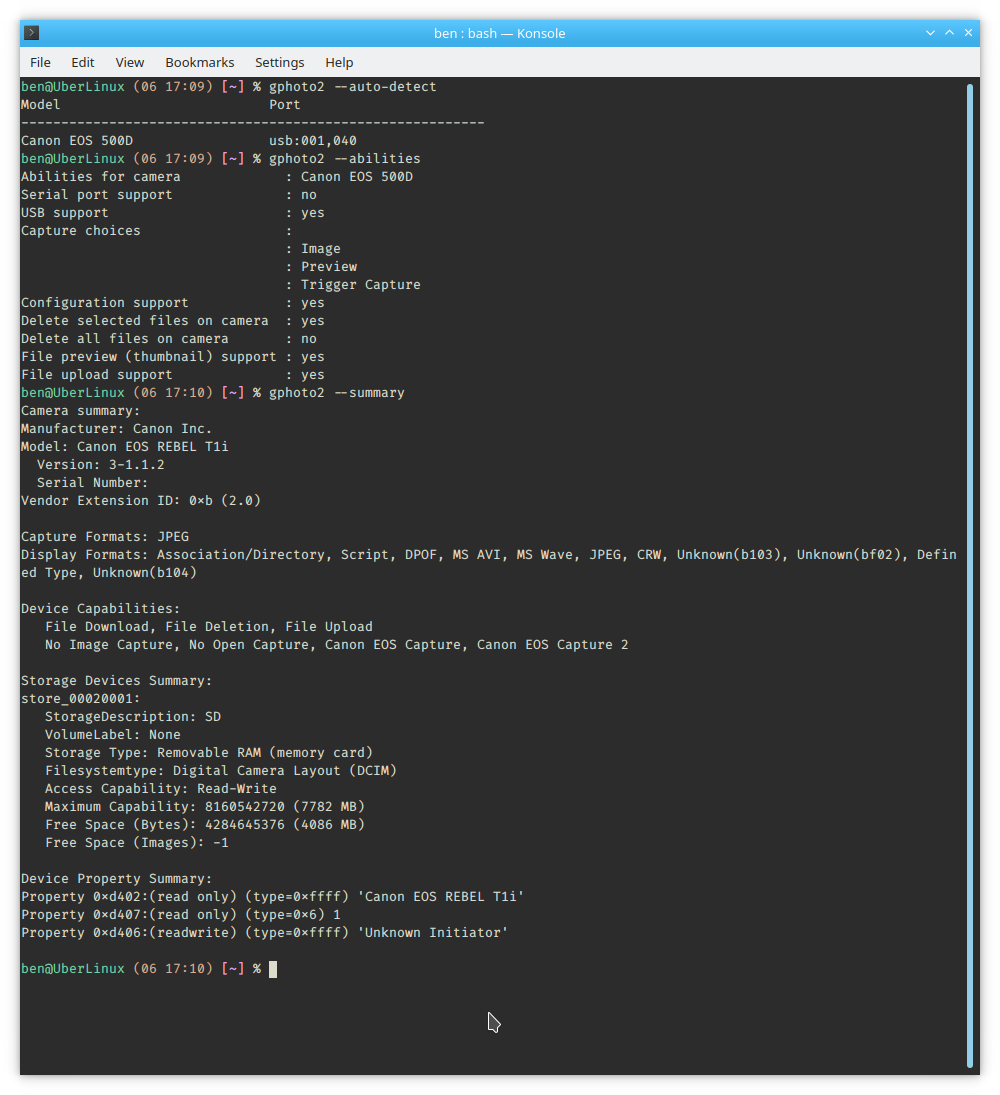
At this point, you should have everything configured to start testing. Still within your terminal, validate that gPhoto can see and interact with your camera:

  • gphoto2 --auto-detect : List auto-detected cameras and the ports to which they are connected.
  • gphoto2 --summary : Summary of camera status.
  • gphoto2 --abilities : Display the camera and driver abilities specified in the libgphoto2 database. Use --summary to query an overview of the camera.

You should now see the correct camera and gPhoto is able to report on it’s capabilities:


gPhoto2 Output

DSLR Webcam Video Testing

Still within the terminal let’s start with something simple, capturing a single photograph. This command will take a single photograph using the settings defined on your camera, and save it to your PC:

$ gphoto2 --capture-image-and-download
 

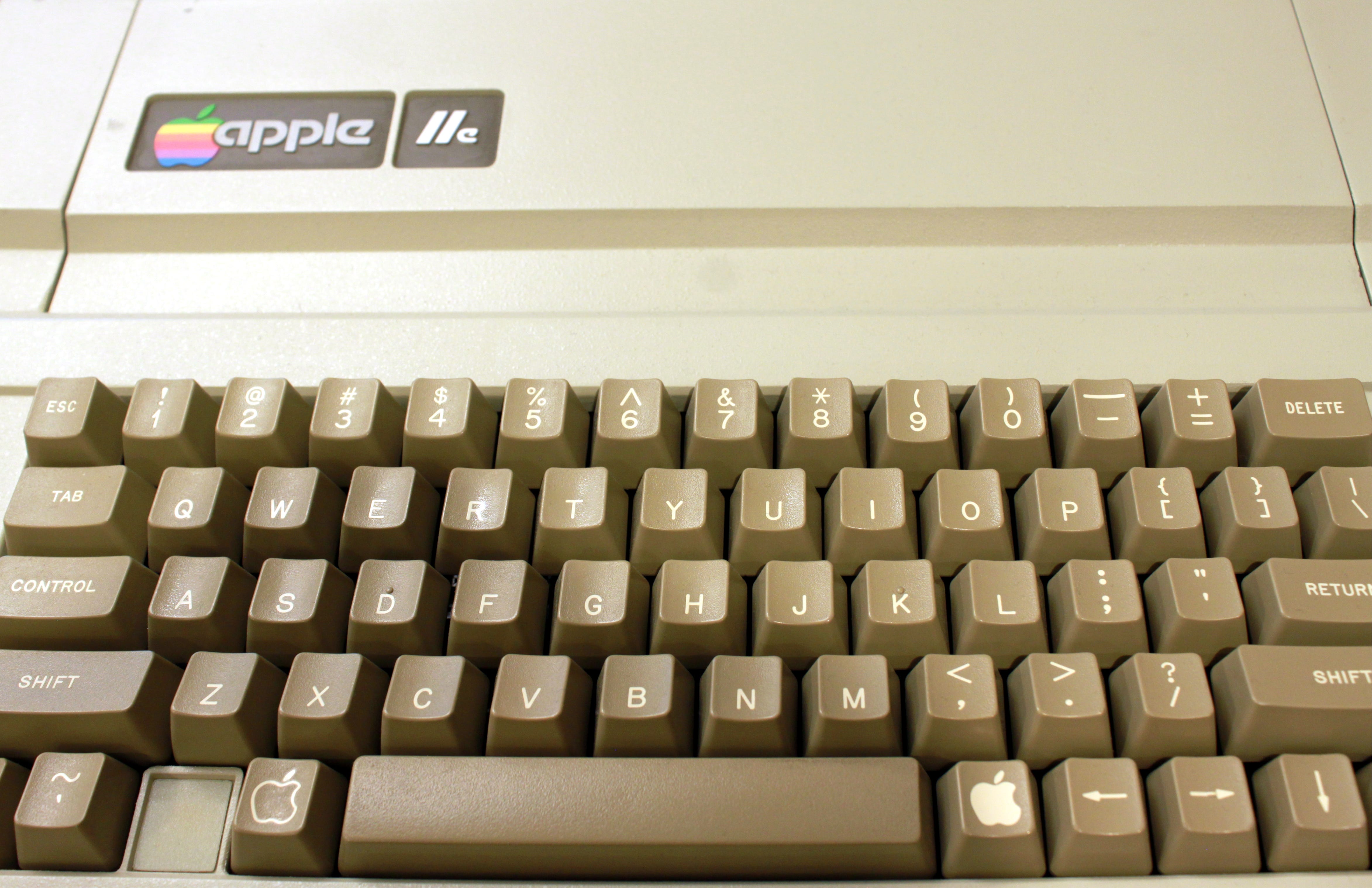
Apple //e Image Captured through gPhoto

Assuming that was successful, let’s try to stream video from the camera:

$ gphoto2 --stdout --capture-movie | ffmpeg -i - -vcodec rawvideo -pix_fmt yuv420p -threads 0 -f v4l2 /dev/video0

With this command, we’re:

  • Capturing date from the camera’s image sensor with gphoto2
  • Piping that data into ffmpeg, which is taking the mjpeg stream from ghoto2 and exposing it to the Video4Linux loopback device

Note: If you have a build of ffmpeg which supports GPU-based encoding, you can offload the decoding of the gphoto output to your GPU to reduce the CPU load associated with this process.

You can verify if you have capability for GPU offload by running ffmpeg -hide_banner -decoders |grep mjpeg_cuvid. If this command returns V..... mjpeg_cuvid Nvidia CUVID MJPEG decoder (codec mjpeg) (or something similar), you’re all set.

For GPU-based decoding you’ll want to pass-hwaccel nvdec -c:v mjpeg_cuvid into your ffmpeg command:

$ gphoto2 --stdout --capture-movie | ffmpeg -hwaccel nvdec -c:v mjpeg_cuvid -i - -vcodec rawvideo -pix_fmt yuv420p -threads 0 -f v4l2 /dev/video0

You should see the verbose output from ffmpeg, with the last line providing detail on encoding status:

ffmpeg Encoding Status

Now, open the VLC application, select the Media Menu -> Capture Device (Ctrl+c). Enter /dev/video0 as the “Video Device Name”, and click the “Play” button.

VLC Capture Device

You should now see a live stream from your DSLR camera!

DSLR Webcam In Linux

Video Conferencing with a DSLR Webcam

You now have all the components working, allowing your DSLR to be used as a webcam in Linux. Ensure that you have the gphoto2 --stdout --capture-moviecommand running before starting your video conferencing application. Google Meet, Zoom, Microsoft Teams, WebEx, BlueJeans all work well with this setup.

Hangouts Meet with a Linux DSLR Webcam

Effectively using gPhoto

The capabilities of gPhoto are impressive — providing a unified interface to programmatically control hundreds of different physical cameras. With this broad capability comes some complexity — but once you understand the basics it’s not nearly as intimidating.

  1. gphoto2 --list-config

--list-config will produce a listing of all configuration entries specific to and available for your camera.

2. gphoto2 --get-config [config]

--get-config will list the type, the current value and the available options of a configuration value. As an example:

$ gphoto2 --get-config whitebalance                                
    Label: WhiteBalance
    Readonly: 0
    Type: RADIO
    Current: Auto
    Choice: 0 Auto
    Choice: 1 Daylight
    Choice: 2 Shadow
    Choice: 3 Cloudy
    Choice: 4 Tungsten
    Choice: 5 Fluorescent
    Choice: 6 Flash
    Choice: 7 Manual

3. gphoto2 --set-config-value [config]

--set-config-value will set the specified configuration entry by specifying its new value. The output of — get-config will provide the values which are possible to set. Another example:

$ gphoto2 --set-config-value whitebalance="Daylight"

You can also chain multiple --set-config-value commands, to get the exact setup you’re looking for:

$ gphoto2 --set-config-value whitebalance="Daylight" --set-config-value aperture="3.5"

gPhoto also provides an interactive shell, which is very useful for testing out various configurations:

$ gphoto2 --shell
gphoto2: {/home/ben} /> get-config whitebalance
Label: WhiteBalance
Readonly: 0
Type: RADIO
Current: Auto
Choice: 0 Auto
Choice: 1 Daylight
Choice: 2 Shadow
Choice: 3 Cloudy
Choice: 4 Tungsten
Choice: 5 Fluorescent
Choice: 6 Flash
Choice: 7 Manual
END
gphoto2: {/home/ben} /> set-config whitebalance=4

https://medium.com/nerdery/dslr-webcam-setup-for-linux-9b6d1b79ae22

how can I lock a cell? 

Router do not have such feature for force Cell ID.

But using AT commands via SSH you could try to force Cell ID. There is a risk to lost connection, so remember to which Cell ID router was connected and save all commands and outputs which you was used for recovering.

Commands example:

root@Teltonika-Router:~# ifdown ppp

root@Teltonika-Router:~# /etc/init.d/gsmd stop

root@Teltonika-Router:~# microcom /dev/modem_cmd

ATE1

OK

AT+QCSQ=0

OK

AT+CGREG=2

OK

AT+CGREG?

+CGREG: 2,1,”2620″,”BCA9802″,7

OK

AT+QENG=”servingcell”

+QENG: “servingcell”,”NOCONN”,”LTE”,”FDD”,250,02,BCA9802,62,2850,7,5,5,2620,-109,-9,-80,15,18

OK

AT+QENG=”neighbourcell”

+QENG: “neighbourcell intra”,”LTE”,2850,62,-10,-109,-79,0,18,4,22,10,62

+QENG: “neighbourcell inter”,”LTE”,1602,16,-11,-102,-82,0,18,3,0,18

+QENG: “neighbourcell inter”,”LTE”,3048,62,-12,-114,-93,0,0,4,0,16

+QENG: “neighbourcell”,”WCDMA”,10687,1,0,0,448,-860,-65,18

+QENG: “neighbourcell”,”WCDMA”,10662,1,0,0,448,-860,-95,18

+QENG: “neighbourcell”,”WCDMA”,10662,1,0,0,37,-1250,-245,-21

OK

AT+QNWLOCK=”common/4g”,1,1602,16

OK

+QNWLOCK: “common/4g”,0

AT+QNWLOCK=”common/4g”

+QNWLOCK: “common/4g”,1,1602,16

OK

AT+CGREG?

+CGREG: 2,1,”2620″,”BCA9805″,7

OK

AT+QENG=”servingcell”

+QENG: “servingcell”,”NOCONN”,”LTE”,”FDD”,250,02,BCA9805,16,1602,3,4,4,2620,-100,-10,-70,14,28

OK

Ctrl+x

root@Teltonika-Router:~# /etc/init.d/gsmd start

root@Teltonika-Router:~# ifup ppp

BEST ANSWER

 commented  by anonymous

Thank you!

but i’m not not able to do this…stuck at AT+QNLOCK

 commented  by anonymouse

What output you get after this command: AT+QENG=”neighbourcell”

 commented  by anonymous

Dears,

is it possible to implement a similar script to lock a 3g wcdma cell?

In my neighbourcell list I have something like this (RUT955):

AT+QENG=”neighbourcell”

+QENG: “neighbourcell”,”WCDMA”,3038,-935,495,-1000,-75,3,-32768,-

+QENG: “neighbourcell”,”WCDMA”,3038,-935,129,-1040,-115,3,-32768,-

+QENG: “neighbourcell”,”WCDMA”,3038,-935,200,-1060,-120,3,-32768,-

+QENG: “neighbourcell”,”WCDMA”,3038,-935,424,-1100,-145,3,-32768,-

+QENG: “neighbourcell”,”WCDMA”,3038,-935,3,-1050,-155,2,-32,-

+QENG: “neighbourcell”,”WCDMA”,3038,-935,35,-1140,-195,3,-32768,-

+QENG: “neighbourcell”,”WCDMA”,3038,-935,5,-1150,-200,3,-32768,-

+QENG: “neighbourcell”,”WCDMA”,3038,-935,330,-1180,-240,3,-32768,-

It there a QNWLOCK command to lock one of these cells?
Thank you

Source: how can I lock a cell? – Crowd Support Forum | Teltonika Networks