Source: Arduino Wiring & Test | Adafruit CCS811 Air Quality Sensor | Adafruit Learning System
Arduino Wiring & Test | Adafruit CCS811 Air Quality Sensor | Adafruit Learning System
 Jovan Stosic
Jovan Stosic
Jovan Stosic
Jovan Stosic
Jovan Stosic
Jovan Stosic
Jovan Stosic
Jovan Stosic
Jovan Stosic
Jovan Stosic
Jovan Stosic
Jovan Stosic
Jovan Stosic
You can modify the heading hierarchy or assign a level in the hierarchy to a custom paragraph style. You can also add chapter and section numbering to heading paragraph styles. By default, the “Heading 1” paragraph style is at the top of the outline hierarchy.
Jovan Stosic
Jovan Stosic
Jovan Stosic
Option 1: The primary program contact adds you to the organization
Instructions for the primary program contact:
Once the primary program contact of your organization has completed the steps above, you will receive a notification email. Follow the instructions in the email to complete the association.
Option 2: Associate yourself to the organization


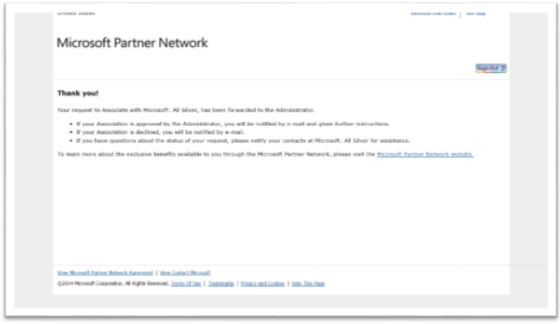
Source: How to associate a Microsoft account to your organization’s Microsoft Partner Network ID
Jovan Stosic
Web browsers have constantly evolved over the years and content is being added to the web on a behemoth scale. How do you handle such large inflow of data without proper means to organize your favorite webpages out of them? Bookmarks were a thing since the medieval past, more than a century ago and they’re now indispensable even in the age of the Internet. What has made them so vital is the simplicity that they add to our handling of data on the web.
Find something interesting and wish to visit again without losing it? Bookmarks are the way. With integrations to all major web browsers and even standalone mobile and web applications, Bookmarks have evolved with the rapid changes to the Internet. While only web browser extensions should suffice this task, most of them fall short when it comes to organizing these bookmarks efficiently.
Jovan Stosic
The SharePoint Migration Tool (SPMT) is a tool that migrates your files from SharePoint on-premises document libraries or regular file shares and easily moves them to your SharePoint Online tenant. It is available to all Office 365 users.
Source: How to use the SharePoint Migration Tool | Microsoft Docs
Jovan Stosic
