FAI is a tool for unattended mass deployment of Linux. It’s a system to install and configure Linux systems and software packages on computers as well as virtual machines, from small labs to large-scale infrastructures like clusters and virtual environments. You can take one or more virgin PC’s, turn on the power, and after a few minutes, the systems are installed, and completely configured to your exact needs, without any interaction necessary.
You can get a single packet with -c 1, or n number with -c n.
This showed some HTTPS traffic, with a hex display visible on the right portion of the output (alas, it’s encrypted). Just remember—when in doubt, run the command above with the port you’re interested in, and you should be on your way.
Examples
PacketWizard™ isn’t really trademarked, but it should be.
A PRACTITIONER PREPARING TO RUN TCPDUMP
Now that you are able to get basic traffic, let’s step through numerous examples that you are likely to need during your job in networking, security, or as any type of PacketWizard™.
everything on an interface
Just see what’s going on, by looking at what’s hitting your interface.
Or get all interfaces with -i any.
tcpdump -i eth0
find traffic by ip
One of the most common queries, using host, you can see traffic that’s going to or from 1.1.1.1.
Expression Types:
host, net, and port.
Directions:
src and dst.
Types:
host, net, and port.
Protocols:
tcp, udp, icmp, and many more.
tcpdump host1.1.1.1
06:20:25.593207 IP 172.30.0.144.39270 > one.one.one.one.domain:
12790+ A? google.com.
(28) 06:20:25.594510 IP one.one.one.one.domain > 172.30.0.144.39270:
12790 1/0/0 A 172.217.15.78 (44)
If you only want to see traffic in one direction or the other, you can use src and dst.
tcpdump src1.1.1.1
tcpdump dst1.0.0.1
finding packets by network
To find packets going to or from a particular network or subnet, use the net option.
You can combine this with the src and dst options as well.
tcpdump net1.2.3.0/24
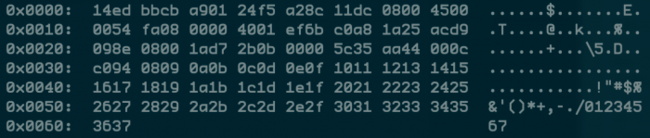
get packet contents with hex output
Hex output is useful when you want to see the content of the packets in question, and it’s often best used when you’re isolating a few candidates for closer scrutiny.
tcpdump -c 1-Xicmp
A SINGLE ICMP PACKET VISIBLE IN HEX
tcpdump is the tool everyone should learn as their base for packet analysis.
show traffic related to a specific port
Common Options:
-nn : Don’t resolve hostnames or port names.
-S : Get the entire packet.
-X : Get hex output.
You can find specific port traffic by using the port option followed by the port number.
tcpdumpport3389 tcpdumpsrcport1025
show traffic of one protocol
If you’re looking for one particular kind of traffic, you can use tcp, udp, icmp, and many others as well.
tcpdumpicmp
show only ip6 traffic
You can also find all IP6 traffic using the protocol option.
tcpdumpip6
find traffic using port ranges
You can also use a range of ports to find traffic.
tcpdumpportrange21-23
find traffic based on packet size
If you’re looking for packets of a particular size you can use these options. You can use less, greater, or their associated symbols that you would expect from mathematics.
It’s often useful to save packet captures into a file for analysis in the future. These files are known as PCAP (PEE-cap) files, and they can be processed by hundreds of different applications, including network analyzers, intrusion detection systems, and of course by tcpdump itself. Here we’re writing to a file called capture_file using the -w switch.
tcpdumpport80-wcapture_file
You can read PCAP files by using the -r switch. Note that you can use all the regular commands within tcpdump while reading in a file; you’re only limited by the fact that you can’t capture and process what doesn’t exist in the file already.
tcpdump-rcapture_file
advanced
Now that we’ve seen what we can do with the basics through some examples, let’s look at some more advanced stuff.
More options
Here are some additional ways to tweak how you call tcpdump.
-X : Show the packet’s contents in both hex and ascii.
-XX : Same as -X, but also shows the ethernet header.
-D : Show the list of available interfaces
-l : Line-readable output (for viewing as you save, or sending to other commands)
-q : Be less verbose (more quiet) with your output.
-t : Give human-readable timestamp output.
-tttt : Give maximally human-readable timestamp output.
-i eth0 : Listen on the eth0 interface.
-vv : Verbose output (more v’s gives more output).
-c : Only get x number of packets and then stop.
-s : Define the snaplength (size) of the capture in bytes. Use -s0 to get everything, unless you are intentionally capturing less.
-S : Print absolute sequence numbers.
-e : Get the ethernet header as well.
-q : Show less protocol information.
-E : Decrypt IPSEC traffic by providing an encryption key.
It’s All About the Combinations
Being able to do these various things individually is powerful, but the real magic of tcpdump comes from the ability to combine options in creative ways in order to isolate exactly what you’re looking for. There are three ways to do combinations, and if you’ve studied programming at all they’ll be pretty familiar to you.
AND and or &&
OR or or ||
EXCEPT not or !
raw output view
Use this combination to see verbose output, with no resolution of hostnames or port numbers, using absolute sequence numbers, and showing human-readable timestamps.
tcpdump -ttnnvvS
Here are some examples of combined commands.
from specific ip and destined for a specific port
Let’s find all traffic from 10.5.2.3 going to any host on port 3389.
tcpdump -nnvvSsrc 10.5.2.3anddst port 3389
from one network to another
Let’s look for all traffic coming from 192.168.x.x and going to the 10.x or 172.16.x.x networks, and we’re showing hex output with no hostname resolution and one level of extra verbosity.
tcpdump -nvX src net 192.168.0.0/16anddst net 10.0.0.0/8or172.16.0.0/16
non icmp traffic going to a specific ip
This will show us all traffic going to 192.168.0.2 that is not ICMP.
tcpdump dst 192.168.0.2andsrc netandnot icmp
traffic from a host that isn’t on a specific port
This will show us all traffic from a host that isn’t SSH traffic (assuming default port usage).
As you can see, you can build queries to find just about anything you need. The key is to first figure out precisely what you’re looking for and then to build the syntax to isolate that specific type of traffic.
Keep in mind that when you’re building complex queries you might have to group your options using single quotes. Single quotes are used in order to tell tcpdump to ignore certain special characters—in this case below the “( )” brackets. This same technique can be used to group using other expressions such as host, port, net, etc.
Global A asIntegersubLine
dim document asobject
dim dispatcher asobject
document =ThisComponent.CurrentController.Frame
dispatcher = createUnoService("com.sun.star.frame.DispatchHelper")
dim args2(1)asnew com.sun.star.beans.PropertyValue
args2(1).Name="TopBottomMargin.BottomMargin"if A =0then
args2(1).Value=200
A =1else
args2(1).Value=0
A =0endif
dispatcher.executeDispatch(document,".uno:TopBottomMargin","",0, args2())endsub
The Smith chart, invented by Phillip H. Smith (1905–1987), and T. Mizuhashi,[3] is a graphical calculator or nomogram designed for electrical and electronics engineers specializing in radio frequency (RF) engineering to assist in solving problems with transmission lines and matching circuits.[4][5] The Smith chart can be used to simultaneously display multiple parameters including impedances, admittances, reflection coefficients, {\displaystyle S_{nn}\,}scattering parameters, noise figure circles, constant gain contours and regions for unconditional stability, including mechanical vibrations analysis.The Smith chart is most frequently used at or within the unity radius region. However, the remainder is still mathematically relevant, being used, for example, in oscillator design and stability analysis. While the use of paper Smith charts for solving the complex mathematics involved in matching problems has been largely replaced by software based methods, the Smith chart is still a very useful method of showing how RF parameters behave at one or more frequencies, an alternative to using tabular information. Thus most RF circuit analysis software includes a Smith chart option for the display of results and all but the simplest impedance measuring instruments can plot measured results on a Smith chart display.
The SWR is usually thought of in terms of the maximum and minimum ACvoltagesalong the transmission line, thus called thevoltage standing wave ratioorVSWR(sometimes pronounced “vizwar”). For example, the VSWR value 1.2:1 means that an AC voltage, due to standing waves along the transmission line, will have a peak value 1.2 times that of the minimum AC voltage along that line, if the line is at least one half wavelength long. The SWR can be also defined as the ratio of the maximum amplitude to minimum amplitude of the transmission line’scurrents,electric field strength, or the magnetic field strength. Neglecting transmission line loss, these ratios are identical.
Thepower standing wave ratio(PSWR) is defined as the square of the VSWR,however, this deprecated terminology has no physical relation to actual powers involved in transmission.
SWR is usually measured using a dedicated instrument called anSWR meter. Since SWR is a measure of the load impedance relative to the characteristic impedance of the transmission line in use (which together determine thereflection coefficientas describedbelow), a given SWR meter can interpret the impedance it sees in terms of SWR only if it has been designed for that particular characteristic impedance. In practice most transmission lines used in these applications arecoaxial cableswith an impedance of either 50 or 75ohms, so most SWR meters correspond to one of these.
Checking the SWR is a standard procedure in a radio station. Although the same information could be obtained by measuring the load’s impedance with animpedance analyzer(or “impedance bridge”), the SWR meter is simpler and more robust for this purpose. By measuring the magnitude of the impedance mismatch at the transmitter output it reveals problems due to either the antenna or the transmission line.
 Jovan Stosic