Engineering and technology

System Architecture Evolution

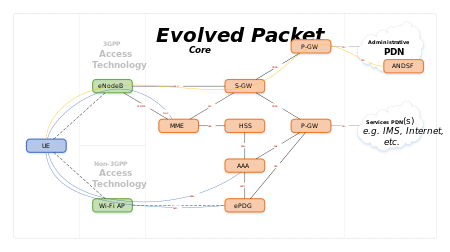
System Architecture Evolution (SAE) is the core network architecture of 3GPP‘s LTE wireless communication standard.

SAE is the evolution of the GPRS Core Network, with some differences:

  • simplified architecture
  • all-IP Network (AIPN)
  • support for higher throughput and lower latency radio access networks (RANs)
  • support for, and mobility between, multiple heterogeneous access networks, including E-UTRA (LTE and LTE Advanced air interface), 3GPP legacy systems (for example GERAN or UTRAN, air interfaces of GPRS and UMTS respectively), but also non-3GPP systems (for example WiFi, WiMAX or cdma2000)

Source: System Architecture Evolution – Wikipedia

Decoding and sending 433MHz RF codes with Arduino and rc-switch

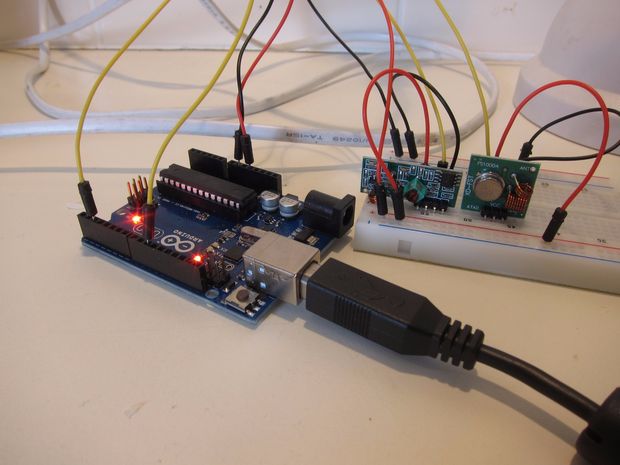
In this tutorial I’ll show you how to use an Arduino to decode signals from RF remotes, and re-send them to remotely control some mains switches and a garage door.Note: This guide was written for Australia, where it’s legal to operate low powered devices (25mW) in the 433MHz band without a licence. Check what’s legal in your own country. If you’re transmitting to (or on the same frequency as) a garage door opener / RC toy etc that you bought in your own country, it should be fine, provided you stick to the power limit.

Source: Decoding and sending 433MHz RF codes with Arduino and rc-switch

Restart loop after interrupt?

Does anyone know if it is possible to start a program from the beginning of the loop() function after an external interrupt has been executed instead of picking up where it left off?
I have a program which checks the speed of the car, distance traveled, average speed etc.. and when the interrupt is activated, it is supposed to toggle through the different modes. The problem I have is that if the car is standing still and the magnets are not passing the reed switch, I need to wait 6 seconds for each screen to advance. I would like to make it so that it advances instantaneously and causing the program to start from the beginning of the loop after the interrupt has been tripped would do this. If anyone knows of another solution that would work, please let me know and so I could try that.

Source: Restart loop after interrupt?

Adi Roiban – Monitor the UPS in Ubuntu with Network UPS Tools

Monitor the UPS in Ubuntu with Network UPS Tools

I just found this great project called Network UPS Tools or nut . It comes with fully loaded with tools for monitoring local UPS, remote UPS and displaying the status via a weg page. My installation is using an Must PowerAgent 1060, connected via USB.

Installing the software is easy, just use the magic words:

sudo apt-get install nut nut-cgi

To configure nut on Ubuntu I start by reading this guide by a mysterious person named Shady Pixel.

First I checked my driver suitable for my model in the Hardware Compatibility List. The model I use is not in the list, but Must is related to Mustek and all Mustek models were using blazer_usb driver. So I went for blazer_usb.

I added the following section in /etc/nut/ups.conf (you can replace must-pa-1060 with your preferred name for the UPS):

# /etc/nut/ups.conf
[must-pa-1060]
    driver = blazer_usb
    port = auto

I looked for the Bus and Device number together with Vendor and Product in lsusb.

I changed the permission to 666 for /dev/bus/usb/BID/DID (replace BID with your USB bus ID, and DID with device ID). To automatically set the permission for future connections I added the following udev rule:

#/etc/udev/rules.d/10-must-pa-1060.rules
SYSFS{idVendor}=='0665', SYSFS{idProduct}=='5161', MODE='0666'

Then I started the UPS driver via:

$ sudo upsdrvctl start

If you get some errors like the one below, check the USB device permissions:

Can't claim USB device [0665:5161]: could not detach kernel driver from
interface 0: Operation not permitted
Driver failed to start (exit status=1)

Now that the UPS driver is started, lets monitor it and export the status via the CGI script.

You will have to configure the mode in which nut will run. Edit /etc/nut/nut.conf and add your preferred mode:

# /etc/nut/nut.conf
MODE=standalone

Add an UPS daemon user via /etc/nut/upsd.users:

# /etc/nut/upsd.users
[ups_admin]
password = a password here
upsmon master

Configure the monitor to connect to this daemon via /etc/nut/upsmon.conf:

# /etc/nut/upsmon.conf
MONITOR must-pa-1060@localhost 1 ups_admin the_password_here master

Now you can start the nut daemon and ups monitor via nut service:

sudo service nut start

To monitor the UPS via the web CGI script I added the following line to/etc/nut/hosts.conf:

# /etc/nut/hosts.conf
MONITOR must-pa-1060@localhost 'Must PowerAgent 1060'

Now you can access the CGI script via:

http://HOSTNAME/cgi-bin/nut/upsstats.cgi

Enjoy!

Source: Adi Roiban – Monitor the UPS in Ubuntu with Network UPS Tools

Modifying NUT UPS shutdown delay.

Hello All!

I’ve recently configured a new Power Shield Defender 650VA UPS on my home SME server and it is working well. I would, however, like to change the shutdown behavior of the server.

At the moment, when the UPS goes to battery, the server continues to operate until the UPS sends the “battery low” warning, at which point it auto-shuts down. I would like to change the configuration so that the server will shut down 2 minutes after receiving the “on battery” signal.

What is the best way to achieve this?

Thanks in advance.

P.S. For those Aussies who are thinking about getting one of these UPS’, I configured NUT to use the megatec_usb driver and set the port to “auto”.

Source: Modifying NUT UPS shutdown delay.

HOWTO: Set Up NUT, the Network UPS Tools

HOWTO: Set Up NUT, the Network UPS Tools

Ted Felix

Note: This page is incomplete. I will remove this when I have successfully completed configuring my UPS with NUT.

The power goes out all the time here, so I decided to take a shot at setting up a UPS and having the server shutdown when the power goes out. This turned out to be pretty difficult as the “Network UPS Tools” are a bit of a pain to set up. Here are my notes so far…

UPS’s from Dell, MGE, and Eaton appear to be fully supported by NUT. Others should work, but if you can find one of those, it’s guaranteed to work.

The ubuntu package is “nut”:

$ sudo apt-get install nut

NUT is very painful to configure. Follow these steps carefully. The blasterspike.it link appears to be the best.

Identify UPS and Driver

Identify UPS. lsusb works for USB connected UPS’s. In my case, I have a “Cyber Power Systems CP1500AVR USB”.

$ lsusb
...
Bus 001 Device 003: ID 0764:0501 Cyber Power System, Inc. CP1500 AVR UPS

Check the NUT Hardware Compatibility List to figure out which driver will work for your UPS. For my USB UPS, the correct driver is “usbhid-ups”.

Update ups.conf and Test

Add a new section to /etc/nut/ups.conf for the ups. I picked “serverups” for the name. “ups” would probably be better for a simple setup like mine.

[serverups]
    driver = usbhid-ups
    port = auto
    desc = "Server UPS"
- Install udev rules for usbhid-ups (see man usbhid-ups INSTALLATION)
    sudo cp /lib/udev/rules.d/52-nut-usbups.rules /etc/udev/rules.d/
    reboot
- Set up /var/run/nut per
  http://www.blasterspike.it/2011/03/28/how-to-install-nut-on-ubuntu-10-10-maverick-meerkat/
    sudo mkdir /var/run/nut
    sudo chown root:nut /var/run/nut
    sudo chmod 770 /var/run/nut
- Test the ups.conf file:
    sudo upsdrvctl start
  Normal output:
    Network UPS Tools - UPS driver controller 2.6.3
    Network UPS Tools - Generic HID driver 0.35 (2.6.3)
    USB communication driver 0.31
    Using subdriver: CyberPower HID 0.3

upsd

- Launch upsd
    sudo upsd
  Normal output:
    Network UPS Tools upsd 2.6.3
    listening on 127.0.0.1 port 3493
    listening on ::1 port 3493
    Connected to UPS [serverups]: usbhid-ups-serverups
- Test the upsd with upsc
    sudo upsc serverups@localhost
  Should see values for a lot of variables.

More steps…

- Continue with the blasterspike.it steps.  They seem to be good.
  http://www.blasterspike.it/2011/03/28/how-to-install-nut-on-ubuntu-10-10-maverick-meerkat/
- upsd.users - Need to add a user id for upsmon to login.
- upsmon.conf - Need to add a line to monitor the ups.
- nut.conf - Set the mode.
- Start it up at boot.
  blasterspike uses the old "service" to start this.  Is upstart an option?
  It might be if we set it up ourselves.  As it stands, initctl does not
  appear to know of it.  See /etc/init.d/nut.

Five Minutes?

- Configure it to shutdown after 5 minutes instead of when the UPS goes
  critical.  I don't see a way to do this anywhere.  Strange.  What exactly
  is its criteria for shutting down?  10% battery left?  It's a UPS
  data item:
    battery.charge: 100  (percent)
    battery.charge.low: 10  (percent, this is when shutdown will occur)
    battery.charge.warning: 20  (percent)
    battery.runtime: 2887  (seconds)
    battery.runtime.low: 300  (seconds, this is when shutdown will occur)
  I think you can tweak this in one of the config files.  There's an
  override.  But this doesn't seem ideal.  There's no way to say that
  it should shutdown after 5 minutes (if it can last that long).

References

How To Install NUT – Great article with all the steps.

Network UPS Tools – NUT

NUT Documentation

nut manual section 3.9 “One UPS, one computer. This is also known as “Standalone” configuration. This is the configuration that most users will use. You need at least a driver, upsd, and upsmon running.”

5.2 “Configuration files are located in /etc/nut. nut.conf(5) must be edited to be able to invoke /etc/init.d/nut”

Section 6 of the docs covers setup. Basically, the ups.conf file has to have an entry for the ups. Then it will work. (If only that were it!)

Config files for NUT: nut.conf(5), ups.conf(5), upsd.conf(5), upsd.users(5), upsmon.conf(5)

http://archive09.linux.com/feature/128099 – Not sure this is any good.

Source: HOWTO: Set Up NUT, the Network UPS Tools

“Failed to load platform plugin “xcb” ” while launching qt5 app on linux without qt installed – Stack Overflow

I wrote application for linux which uses Qt5.But when I am trying to launch it on the linux without Qt SDK installed, the output in console is: Failed to load platform plugin “xcb”. Available

Source: “Failed to load platform plugin “xcb” ” while launching qt5 app on linux without qt installed – Stack Overflow

[SOLVED] error while loading shared libraries: libstdc++-libc6.2-2.so.3 – Page 2

I’m trying to run the Linux version of Return to Castle Wolfenstein, but I get the following errors: clevelandrock@Centurion:~$ wolf ./wolf.x86: error while loading shared libraries: libstdc++-libc6.2-2.so.3: cannot open shared object file: No such file or directory clevelandrock@Centurion:~$ apt-file search libstdc++-libc6.2-2.so.3 clevelandrock@Centurion:~$ uname -a Linux Centurion 2.6.32-23-generic #37-Ubuntu SMP Fri Jun 11 07:54:58 UTC 2010 i686 GNU/Linux clevelandrock@Centurion:~$

Source: [SOLVED] error while loading shared libraries: libstdc++-libc6.2-2.so.3 – Page 2