PCB making, PCB prototyping – UV solder mask STEP by STEP
 Jovan Stosic
Jovan Stosic
Jovan Stosic
Jovan Stosic
Jovan Stosic
1) Boot in Ubutu live cd and start gparted.
2) Shrink the source disk’s data partition (e.g. sdb2). From the free space create a new partition (e.g. sdb4).
3) On destination disk create sda1, sda2 and sda3 (swap) with same size and type as in original disk. From the free space create sda4 (smaller than sdb4).
4) Boot in Conezilla.
5) Chose beginer, disk to disk and copy partition to partition (sdb1 to sda1, sdb2 to sda2). Skip the sdb4.
Jovan Stosic
Jovan Stosic
Officially, Clonezilla requires the destination partition to receive the clone to be equal or larger than the source one. Therefore, the only way to get this done is to shrink the source partition to fit the destination partition.
Clonezilla clone to smaller disk:
1. Open Disk Management in Windows 10/8/7. If you are running Linux system, you can boot your computer from GParted media.
2. Right click the source partition and click “Shrink Volume” and follow the wizard to shrink the partition.
3. When you get that done, reboot to Clonezilla.
4. Select the source disk and destination disk.
5. Choose EXPERT mode and enable the “-icds” option. You need to also choose the option”Resize partitional table proportionally” in one of the following menus.
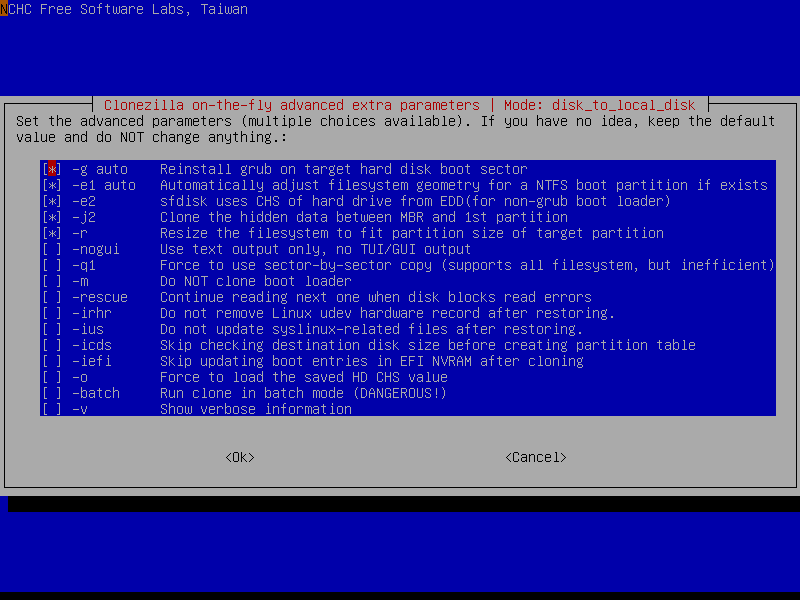
6. Configure other Clonezilla options if needed and then type in “y” to confirm and start the clone.
https://www.backup-utility.com/articles/clonezilla-clone-larger-disk-to-smaller-disk-4348.html
Jovan Stosic
Install and run Boot-Repair
* Open a terminal. As of Ubuntu 11.10 and 11.04, this can be done by opening the Unity Dash (you can click the Ubuntu logo in the top panel or use the Windows key on your keyboard) and typing in “Terminal”, and clicking what comes up. On earlier versions, you can achieve this by going to Applications -> Accessories -> Terminal. Alternately use the Keyboard Shortcut: CTRL + ALT + T.
For full details on using terminal to fix grub on hard drive from Live Installer DVD or Flash: https://help.ubuntu.com/community/Grub2/Installing#via_the_LiveCD_terminal
sudo grub-install /dev/XXX
where XXX is the device of your Ubuntu install. (eg: grub-install /dev/sdb). Hint: You can also use /dev/disk/by-label/ if the partition you installed on has a label. You can determine the /dev node for such a device by running:
ls -l /dev/disk/by-label/
This will give the output of something like:
lrwxrwxrwx 1 root root 10 Oct 16 10:27 data -> ../../sdb2
lrwxrwxrwx 1 root root 10 Oct 16 10:27 data2 -> ../../sda2
lrwxrwxrwx 1 root root 10 Oct 16 10:27 fat -> ../../sda6
lrwxrwxrwx 1 root root 10 Oct 16 10:27 home -> ../../sda7
lrwxrwxrwx 1 root root 10 Oct 16 10:27 root -> ../../sda1
lrwxrwxrwx 1 root root 10 Oct 16 10:27 swap -> ../../sda5
lrwxrwxrwx 1 root root 10 Oct 16 10:27 windows -> ../../sdb1
You can also use fdisk if you do not see the /dev/disk/by-label:
$ sudo fdisk -l

Disk /dev/sda: 160.0 GB, 160041885696 bytes
255 heads, 63 sectors/track, 19457 cylinders
Units = cylinders of 16065 * 512 = 8225280 bytes
Sector size (logical/physical): 512 bytes / 512 bytes
I/O size (minimum/optimal): 512 bytes / 512 bytes
Disk identifier: 0x0001bc54

   Device Boot      Start         End      Blocks   Id  System
/dev/sda1   *           1       18725   150403072   83  Linux
/dev/sda2           18725       19458     5884929    5  Extended
/dev/sda5           18725       19458     5884928   82  Linux swap / Solaris
From here, find only the drive name, ignore the partition number, that is, for partitions labeled “root”, “data2”, “fat”, “home” and “swap” it’s all still just sda. This is due to the fact that GRUB is installed in the MBR of the drive, and not on a partition.
Trouble? If other things are messed up, e.g. if you have deleted the partition from where Grub was previously installed, grub-install may return an error message such as “cannot find a device for /… (is /dev mounted?)”. You may have to do grub-install a bit differently. Refer to the handy guide on fixing a broken system
Now reboot your system. The usual GRUB boot menu should appear. If it does not, hold Left Shift while booting. You will be able to choose between Ubuntu and Windows.
https://help.ubuntu.com/community/RecoveringUbuntuAfterInstallingWindows
Jovan Stosic
Jovan Stosic
Jovan Stosic
Jovan Stosic
mysql> CREATE USER 'root'@'%' IDENTIFIED BY 'root';
mysql> GRANT ALL PRIVILEGES ON *.* TO 'root'@'%' WITH GRANT OPTION;
Source: How to grant all privileges to root user in MySQL 8.0 – Stack Overflow
Jovan Stosic
The Licensing How To series posts are provided by our Customer Service Presales and Licensing team members. These scenario based licensing topics are written on trending topics and issues based on their interactions with customers, Partners and field sellers. For more posts from the Licensing How To series, search the “Licensing How To” tag on this blog.
A frequently asked Office 365 licensing question that we address on our Team is: what happens if I buy Office 365 but continue to run on premises workloads for certain products? We’ve seen Office 365 Community Forums and other sites light up with something called “dual use rights,” “on premises use rights,” or “on premises access rights.” What does this mean, and how does it apply to me? Well, the short answer is, it depends. The basic licensing concept is if you’ve purchased a User Subscription License (User SL, or USL) for an Office 365 Service, that user is licensed to access the equivalent workload(s) running on premises. While the applicable application server CALs are not included in the Office 365 User subscription License, a CAL equivalency use right is included to access the on premises application server.
At a high level, it works like this: Users licensed for applicable/eligible Office 365 services have use rights equivalent to a CAL for the purpose of accessing equivalent on premises workloads. For example, a user licensed for Exchange Online Plan 2 can use their USL to access Standard and Enterprise CAL features of an on premises Exchange Server. Below is a table with the three Office 365 services which have “on premises access rights.” On the left and center columns we listed the on premises product and CAL type. On the right column, we note the Office 365 User SL with rights equivalent to the on premises product and functionality.
|
On Premises Product
|
On Premises functionality
|
Office 365 User SL equivalent
|
|
Exchange Server
|
Standard CAL
|
|
|
Enterprise CAL
|
|
|
|
SharePoint Server
|
Standard CAL
|
|
|
Enterprise CAL
|
|
|
|
Lync Server
|
Standard CAL
|
|
|
Enterprise CAL
|
|
|
|
Plus CAL
|
|
|
|
Please note that applicable CAL Suite Bridge licenses may be required for on premises access
to workloads not included (i.e. Windows Server) in the Office 365 User Subscription License, see the applicable product specific sections in the Product Use Rights document |
||
Source: Dual use rights Office365 | Software Asset Management
Jovan Stosic
Friday, February 22, 2019
Office 365 equivalency licenses only provide user use rights, not server rights. In other words, O365 licenses are equivalent to Exchange Server Client Access Licenses (both Standard and Enterprise) and Windows Server CALs, but you still need server licenses to run Exchange Server on Windows Server on premises.
One exception to this rule is that your Office 365 subscription let’s you use the free hybrid key to run an Exchange hybrid management server. An important caveat here is that the hybrid server cannot be used to host user mailboxes and you may still need a server license for Windows Server. The free hybrid key is available to all Enterprise Office 365 customers, even if they get their license from the CSP channel which says it’s “Not On Premises Capable — Cloud only rights”.
Source: Clearing up confusion about Office 365 Equivalency Use Rights | The EXPTA {blog}
Jovan Stosic