 Jovan Stosic
In this tutorial, we are going to take a look at installing and Configuring OpenLDAP server on Ubuntu 16.04 LTS. We will also install the phpLDAPadmin web-based management tool.
What is OpenLDAP
OpenLDAP is an open-source and fast directory server that provides network client with directory services. Client applications connect to OpenLDAP server using the Lightweight Directory Access Protocol (LDAP) to access organizational information stored on that server. Given the appropriate access, clients can search the directory, modify and manipulate records in the directory. OpenLDAP is efficient on both reading and modifying data in the directory.
OpenLDAP servers are most commonly used to provide centralized management of user accounts. For example, you can create an account in OpenLDAP and if it is connected with mail server, FTP server, Samba server, or any other server, you can use the account to log in to these servers without creating a new account for each server.
How to Install OpenLDAP Server on Ubuntu 16.04
Run the following command to install OpenLDAP server and the client command-line utilities from Ubuntu 16.04 package repository. slapd stands for the Stand-Alone LDAP Daemon.
sudo apt install slapd ldap-utils
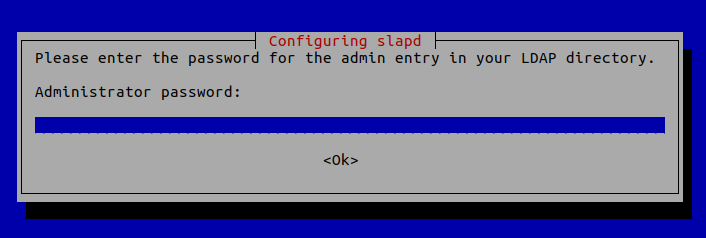
You will be asked to set a password for the admin entry in the LDAP directory.
Once it’s done, slapd will be automatically started. You can check out its status with:
systemctl status slapd
Be default, it runs as the openldap user as is defined in /etc/default/slapd file.
Basic Post-Installation Configuration
The installation process installs the package without any configurations. To have our OpenLDAP server running properly, we need to do some basic post-installation configuration. Run the following command to start the configuration wizard.
sudo dpkg-reconfigure slapd
You will need to answer a series of questions. Answer these questions as follows:
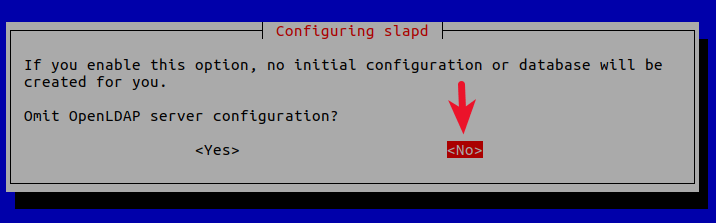
Omit LDAP server configuration: NO.
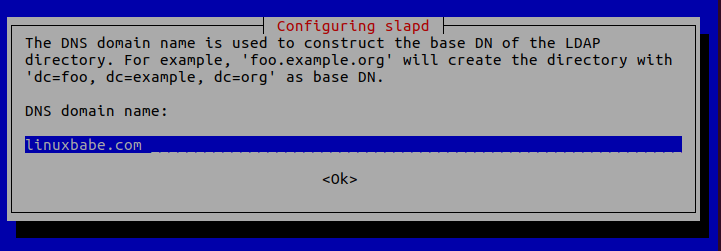
DNS domain name: Enter your domain name like linuxbabe.com. You will need to set a correct A record for your domain name. You can also use a subdomain like directory.linuxbabe.com. This information is used to create the base DN (distinguished name) of the LDAP directory.
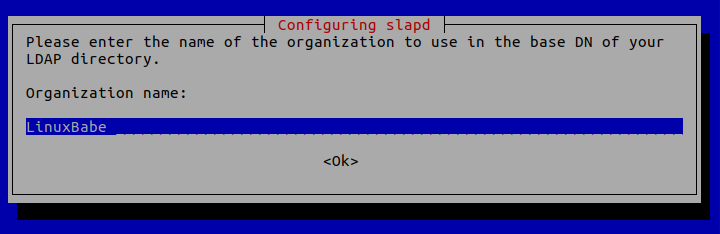
Organization name: Enter your organization name like LinuxBabe.
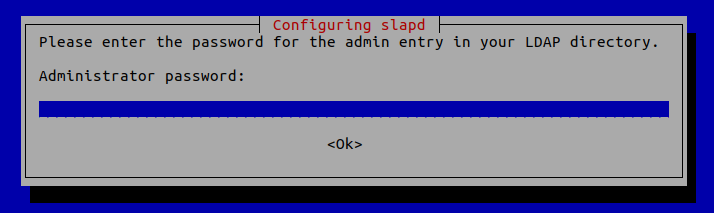
Administrator password: Enter the same password set during installation.
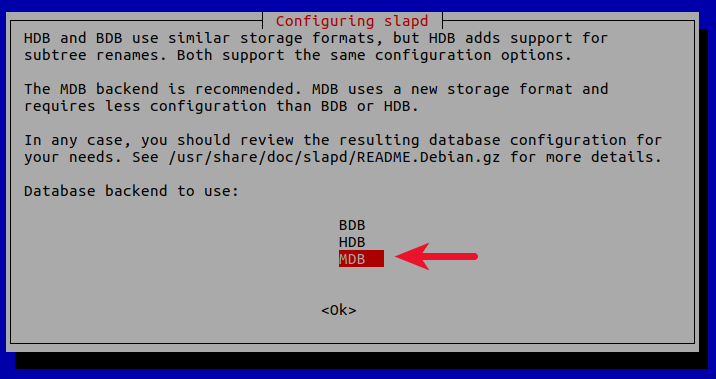
Database backend: MDB.
BDB (Berkeley Database) is slow and cumbersome. It is deprecated and support will be dropped in future OpenLDAP releases. HDB (Hierarchical Database) is a variant of the BDB backend and will also be deprecated.
MDB reads are 5-20x faster than BDB. Writes are 2-5x faster. And it consumes 1/4 as much RAM as BDB. So we choose MDB as the database backend.
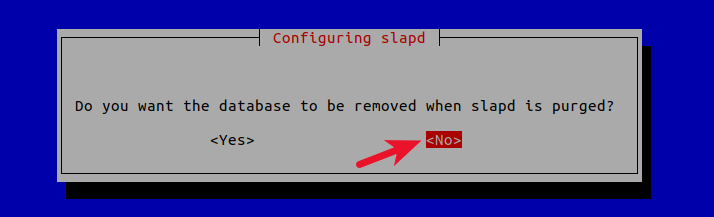
Do you want the database to be removed when slapd is purged? No.
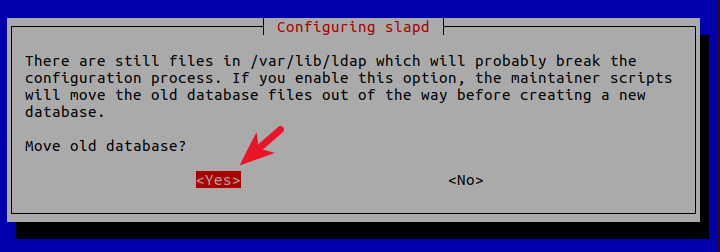
Move old database? Yes.
Allow LDAPv2 protocol? No. The latest version of LDAP is LDAP v.3, developed in 1997. LDAPv2 is obsolete.
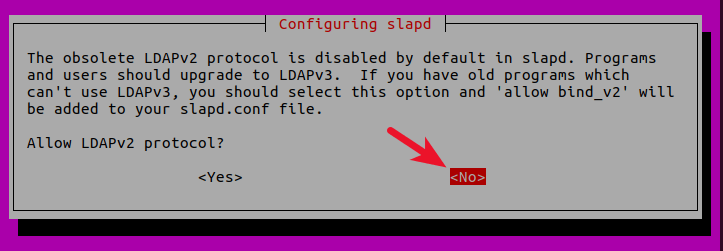
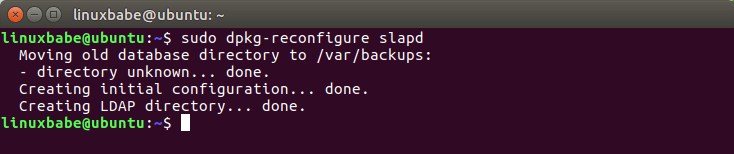
Now the process will reconfigure the OpenLDAP service according to your answers. Your OpenLDAP server is now ready to use.
Configuring the LDAP Clients
/etc/ldap/ldap.conf is the configuration file for all OpenLDAP clients. Open this file.
sudo nano /etc/ldap/ldap.conf
We need to specify two parameters: the base DN and the URI of our OpenLDAP server. Copy and paste the following text at the end of the file. Replace your-domain and com as appropriate.
BASE     dc=your-domain,dc=com
URI      ldap://localhost
The first line defines the base DN. It tells the client programs where to start their search in the directory. If you used a subdomain when configuring OpenLDAP server, then you need to add the subdomain here like so
BASE dc=subdomain,dc=your-domain,dc=com
The second line defines the URI of our OpenLDAP server. Since the LDAP server and client are on the same machine, we should set the URI to ldap://localhost.
Testing OpenLDAP Server
Now that OpenLDAP server is running and client configuration is done, run the following command to make test connections to the server.
ldapsearch -x
Output:
# extended LDIF
#
# LDAPv3
# base <dc=linuxbabe,dc=com> (default) with scope subtree
# filter: (objectclass=*)
# requesting: ALL
#

# linuxbabe.com
dn: dc=linuxbabe,dc=com
objectClass: top
objectClass: dcObject
objectClass: organization
o: LinuxBabe

# admin, linuxbabe.com
dn: cn=admin,dc=linuxbabe,dc=com
objectClass: simpleSecurityObject
objectClass: organizationalRole
cn: admin
description: LDAP administrator

# search result
search: 2
result: 0 Success

# numResponses: 3
# numEntries: 2
Result: 0 Success indicates that OpenLDAP server is working. If you get the following line, then it’s not working.
result: 32 No such object
Installing phpLDAPadmin
phpLDAPadmin is a web-based program for managing OpenLDAP server. The command-line utilities can be used to manage our OpenLDAP server, but for those who want an easy-to-use interface, you can install phpLDAPadmin.
Run the following command to install phpLDAPadmin from Ubuntu package repository.
sudo apt install phpldapadmin
If your Ubuntu server doesn’t have a web server running, then the above command will install the Apache web server as a dependency. If there’s already a web server such as Nginx, then Apache won’t be installed.
If you use Apache
The installation will put a configuration file phpldapadmin.conf under /etc/apache2/conf-enabled/ directory. Once the installation is done, you can access phpLDAPadmin web interface at
your-server-ip/phpldapadmin
or
your-domain.com/phpldapadmin
To enable HTTPS, you can obtain and install a free TLS certificate issued from Let’s Encrypt.
If you use Nginx
Nginx users will need to manually create a server block file for phpLDAPadmin.
sudo nano /etc/nginx/conf.d/phpldapadmin.conf
Copy the following text and paste it to the file. Replace ldap.your-domain.com with your preferred domain name.
server {
        listen 80;
        server_name ldap.your-domain.com;

        root /usr/share/phpldapadmin/htdocs;
        index index.php index.html index.htm;

        error_log /var/log/nginx/phpldapadmin.error;
        access_log /var/log/nginx/phpldapadmin.access;

        location ~ \.php$ {
            fastcgi_pass unix:/run/php/php7.0-fpm.sock;
            fastcgi_index index.php;
            fastcgi_param SCRIPT_FILENAME  $document_root/$fastcgi_script_name;
            include fastcgi_params;
        }
}
Save and close the file. Then text Nginx configurations.
sudo nginx -t
If the test is successful, reload Nginx for the changes to take effect.
sudo systemctl reload nginx
Now you can access phpLDAPadmin web interface at ldap.your-domain.com. To enable HTTPS, you can obtain and install a free TLS certificate issued from Let’s Encrypt.
Configuring phpLDAPadmin
We need to do some configurations just like we did with the command-line client. The phpLDAPadmin configuration file is at /etc/phpldapadmin/config.php .
sudo nano /etc/phpldapadmin/config.php
Since OpenLDAP and phpLDAPadmin are running on the same machine, so we will configure phpLDAPadmin to connect to localhost on the default LDAP port 389 without SSL/TLS encryption.
Line 293 specifies that phpLDAPadmin will connect to localhost.
$servers->setValue('server','host','127.0.0.1');
Line 296 is commented out by default, which means the standard port 389 will be used.
// $servers->setValue('server','port',389);
Line 335 is commented out by default, which means TLS encryption is not enabled.
// $servers->setValue('server','tls',false);
Then go to line 300.
$servers->setValue('server','base',array('dc=example,dc=com'));
Change it to:
$servers->setValue('server','base',array());
This will let phpLDAPadmin automatically detect the base DN of your OpenLDAP server. Next, you can disable anonymous login. Go to line 453.
// $servers->setValue('login','anon_bind',true);
By default, anonymous login is enabled. To disable it, you need to remove the comment character (the two slashes) and change true to false.
$servers->setValue('login','anon_bind',false);
You will probably want to disable template warnings because these warnings are annoying and unimportant. Go to line 161.
// $config->custom->appearance['hide_template_warning'] = false;
Remove the comment character and change false to true.
$config->custom->appearance['hide_template_warning'] = true;
Save and close the file.
Accessing phpLDAPadmin Web Interface
We can now test out the phpLDAPadmin tool with our web browser. When phpLDAPadmin first loads, it looks something like this.
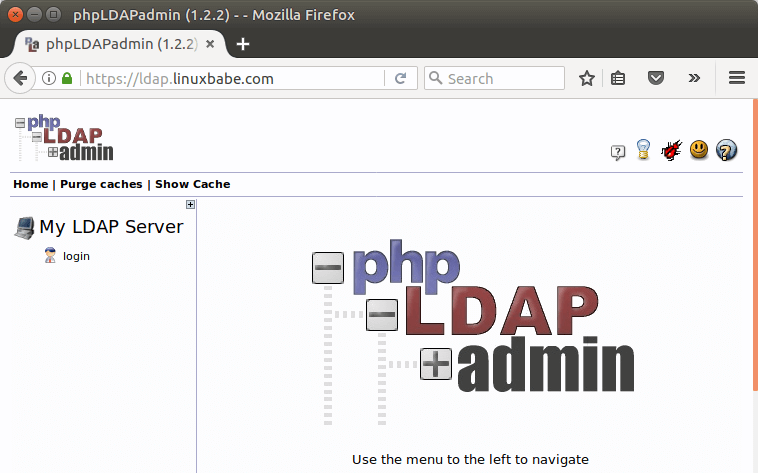
To log into our OpenLDAP server, click on the login link. You will see the login dialog box. The default login DN is cn=admin,dc=example,dc=com. You may need to change dc=example. In my case, I need to change the login DN to cn=admin,dc=linuxbabe,dc=com.
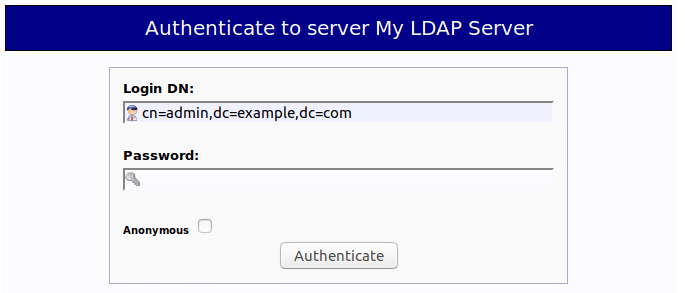
The password is the admin password you set during the configuration of OpenLDAP server. Once you log into phpLDAPadmin, you can manage this directory server.
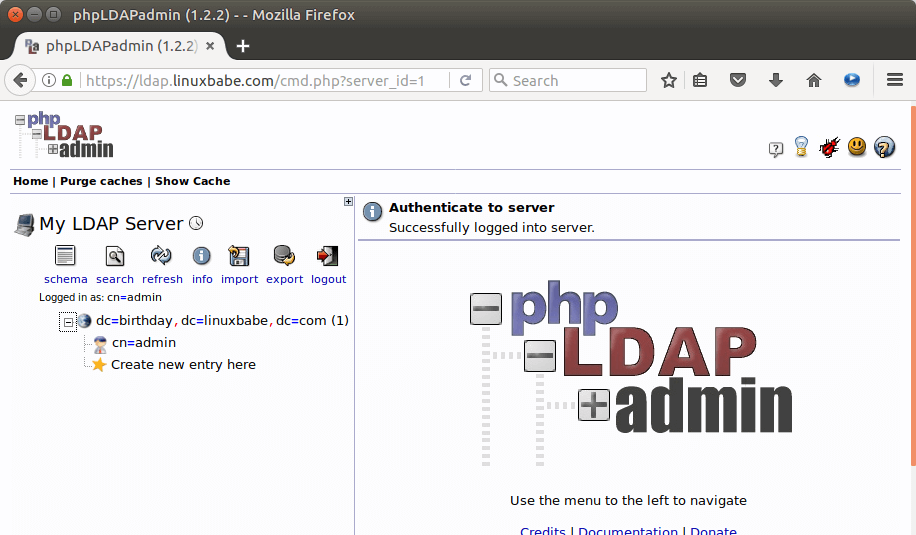
That’s it! I hope this tutorial helped you install and configure both OpenLDAP server and phpLDAPadmin on Ubuntu 16.04. In the next tutorial, we will see how to configure Ubuntu to authenticate user logins with OpenLDAP.
Source: How to Install and Configure OpenLDAP Server on Ubuntu 16.04 Step by Step


