Part 2 of a 3-post series on the new ESP8266 microcontroller
From our look at the $5 ESP8266 WiFi microcontroller and the new Arduino-compatible development environment that’s just been released, let’s get to work testing it out.
Installation of the custom build of the Arduino IDE really couldn’t be simpler. I’m on a Mac, and at that point it comes down to downloading the pre-built binary release from GitHub. The custom binary will live quite happily alongside your existing stock Arduino development environment — in fact, as well as the ESP8266 build, I think I’ve got six or seven other versions of the environment installed at the moment, with version numbers ranging from 1.0.x up to to latest 1.6.x build.
However, despite it being manageable, having a whole separate environment installed isn’t actually necessary. One of the things that the new 1.6.x release of the Arduino environment introduced was much more simplified support for adding and managing new boards.
Which is exactly what Sandeep Mistry has now done with the ESP8266. Installation is almost as simple as before — download it and move the esp8266com folder included in the release inside the hardware folder of your Arduino sketchbook directory.
Wiring up the ESP8266 Module
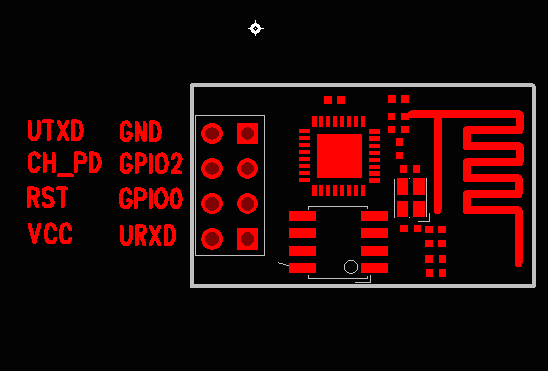
The pin out for the header block of the ESP-01 module
As I mentioned before, probably the most common breakout board you’ll come across for the ESP8266 is the ESP-01. Now unfortunately while the ESP-01 module has a standard spaced header block on one end, the pin out is rather inconvenient when dealing with breadboards. Because of the way the pins are laid out, you can’t just plug the module directly into a breadboard, you’re going to have to break out some jumper cables.
You’ll need to connect the VCC pin to a +3.3V supply, and the GND pin to ground. The board’s RX should be connected to the TX from your computer, and the board TX should be connected to the RX from your computer.
Additionally, to enable the board, you’ll need to pull the CH_PD pin high to +3.3V, and to allow you to upload your sketches you need to put the ESP8266 into bootloader mode by pulling the GPIO_0 pin low and toggling power to the board.
The two easiest methods to attach the board to your computer, so you can load your Arduino sketch onto the ESP8266, are either to use an FTDI adaptor board — like the FTDI Friend — or a standard FTDI cable.
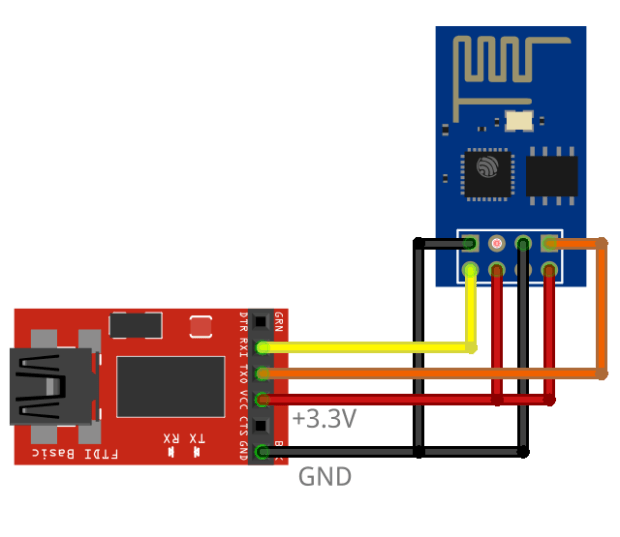
The ESP-01 wired up to an FTDI adaptor. The CH_PD pin is pulled up to +3.3V to enable the board, the GPIO_0 pin is pulled down to GND to enable firmware upload.
Just remember that, if you use a cable, you’ll also need to use a 3.3V regulator, or go ahead and build a voltage divider out of resistors, as the FTDI cable runs at 5V and the ESP8266 runs at just 3.3V.
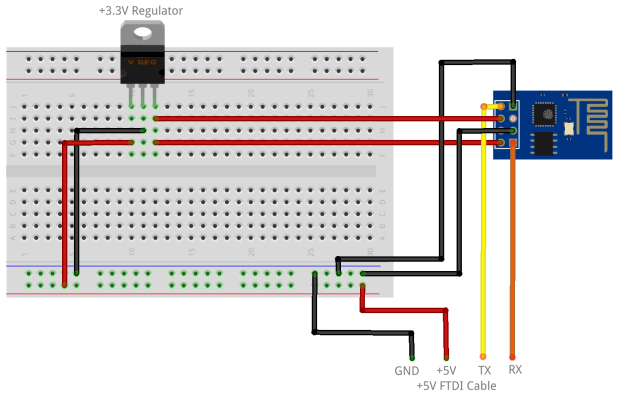
The ESP-01 wired up ready to be connected to a standard FTDI cable. The CH_PD pin is again pulled up to +3.3V to enable the board, whilst the GPIO_0 pin is pulled down to GND enabling firmware upload. Note the 3.3V regulator between the +5V input and the ESP-01 board.
After the sketch is uploaded you will need to remove the jumper between GPIO_0 and GND for things to work correctly.
Uploading the Sketch
The use case for the ESP8266 is controlling things via the network, it’s a classic Internet of Things platform. Let’s start off by doing some Internet of Things like things by flashing an LED on and off using the web. After all, if you can turn an LED on and off, you’re halfway to anywhere.
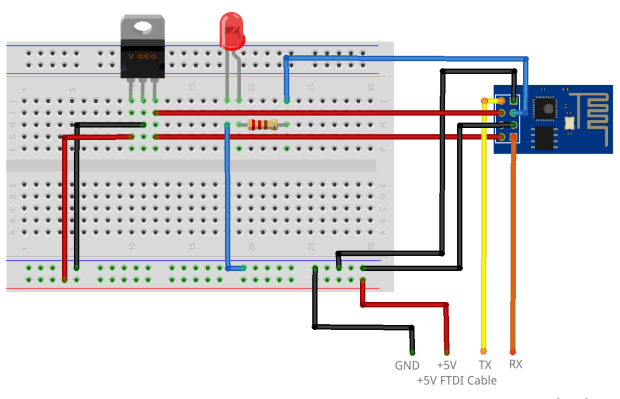
An LED attached to the free GPIO_2 pin of the ESP-01 board.
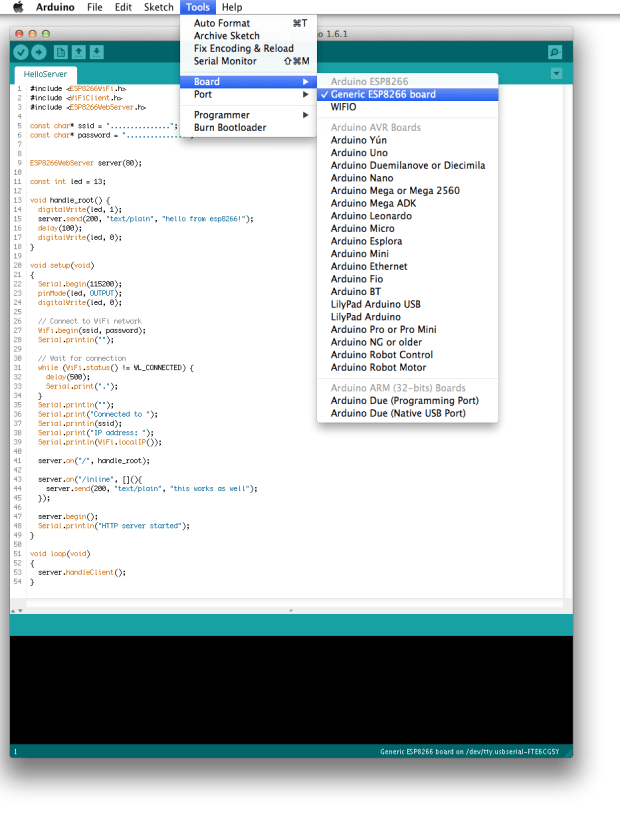
Go ahead and wire up your LED in the normal way to the spare GPIO pin, that’d be GPIO_2, and then open the Arduino IDE. Select “Generic ESP8266 Board” from the Tools → Boards menu, and the serial port your board is connected to from the Tools → Ports menu. Finally select “esptool” from the Tools → Programmer menu.
Now go to the File → Examples → ESP8266WiFi menu and load the “WiFiWebServer” sketch into an editor window. Replace the placeholders values in the script for “ssid” and “password” with the SSID and password for your WiFi network. Then hit the upload button.
If all goes well you you should see that it is “Uploading…” and then, after a while, that it is “Done uploading.” If you encounter an error then you should double check and ensure that the CH_PD pin is pulled high, and the GPIO_0 pin is pulled low. Then toggle the power on the board again to make sure it’s in bootloader mode. You should probably also check that RX is wired to TX, and TX to RX.
Now go ahead and open the Serial Monitor, remove the jumper between the GPIO_0 pin and GND, you toggle the power to the board again. If you do not toggle the power to the board at this stage, you sketch won’t be loaded.
However if all is still going well you should see something like this,
Connecting to Wireless Network
.......
WiFi connected
Server started
192.168.1.224
which tells you that the board has connected to the network, and rather crucially, what the board’s IP address ended up as when it negotiated its connection to the DHCP server.
The ESP-01 board running the “WiFiWebServer” example sketch
Now you can just go to your browser and use the endpoint http://gpio/1 to pull GPIO_2 high, and turn the LED on, or http://gpio/0 to pull GPIO_2 low, and turn the LED off. If you’re still connected to the Serial Console you should see something like this scroll by if you attempt to turn the LED on,
new client
GET /gpio/1 HTTP/1.1
Client disconnected
new client
GET /favicon.ico HTTP/1.1
invalid request
Here you can safely ignore the invalid request error message — that’s just your browser asking for the icon that accompanies the web pages its retrieving, it doesn’t necessarily expect a response — however at this point the LED connected to GPIO_2 should be on. Go ahead and try turning it off again.
If you succeed? Well, done. You’ve just replicated 90% of the functionality of a Philips Hue light bulb and built your first Internet of Things thing.
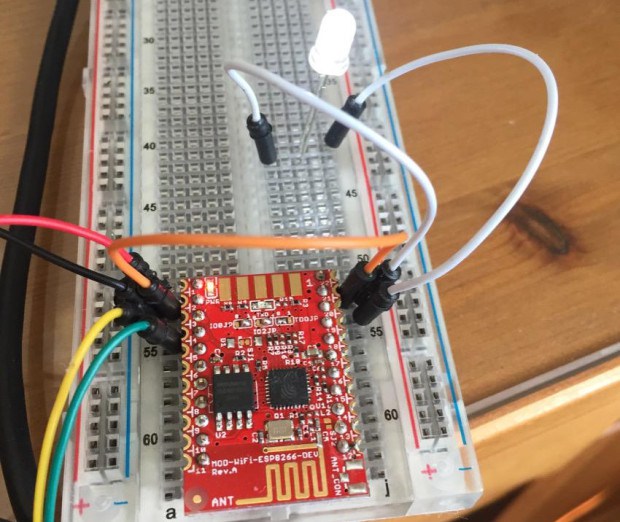
Now if you look closely at the video you might have noticed something odd about the ESP-01 board I’m using, it’s not connected via an FTDI adaptor, or a standard FTDI cable. Instead, I’m using a breadboard adaptor.
Why should I use the ESP8266?
While the ESP8266 can’t do everything you could do with an Arduino — for instance it only has one PWM pin that isn’t even exposed by the ESP-01 breakout board we’ve used here, you’d have to go looking for something like the Olimex board that Sandeep was using to get access to it — but for $5 it’s a bargain.
For $5 it doesn’t have to do the same amount as you can do with an Arduino, because at $5 you can afford to buy 5 or 6 of them for the price of a single Arduino board.
“This is inexpensive enough to be very much in the territory of ‘thousands of sensors-launched-out-of-a-cannon’-cheap.” — Brian Jepson
The ESP8266 was already well on its way to becoming — almost by stealth — one of the leading platforms for the Internet of Things. It’s super cheap, and super easy to work with, and it’s actually fairly easy — as such things go — to get your hands on, which makes a refreshing change.
However the arrival of Arduino compatibility is step change, suddenly the growing but still small community has opened their platform up to a much larger community. Suddenly there is a huge pool of people that know how to work with the board, and I think we’re going to see an explosion of projects and products that otherwise wouldn’t get made. Because suddenly we have our hands on a WiFi board, that we all know how to use, that’s almost cheap enough to throw away.
Get out your soldering iron and buy some boards, I’d love to see what you build with it. Especially if it involves cannons.
This is the second of three posts on the ESP8266 microcontroller. Part 1 of the series introduces the board, while the third part talks about creating a breadboard adaptorfor the ESP-01 breakout board.
 Jovan Stosic