Engineering and technology notes

[MMV] HDMI-DVI converter failure (no screen) – Troubleshooting – OrangePi – Powered by Discuz!


Install sunxi-tools

  1. sudo apt-get install sunxi-tools

Copy the Code

Boot partition should be mounted to /media/boot in loboris images. As root, make backup of  script.bin and convert it to script.fex with bin2fex and edit script.fex with editor of your choice

  1. sudo su
  2. cd /media/boot
  3. cp script.bin script.bin.bak
  4. bin2fex script.bin script.fex
  5. nano script.fex

Copy the Code

Find section [hdmi_para] and add these parameters under it

  1. hdcp_enable = 0
  2. hdmi_cts_compatibility = 1

Copy the Code

Save the file and convert script.fex back to script.bin

  1. fex2bin script.fex script.bin

Copy the Code

Reboot

Source: [Mini 2] HDMI-DVI converter failure (no screen) – Troubleshooting – OrangePi – Powered by Discuz!
[MMV] audio i2s with OpenElec – page 4 – Openelec – OrangePi – Powered by Discuz!

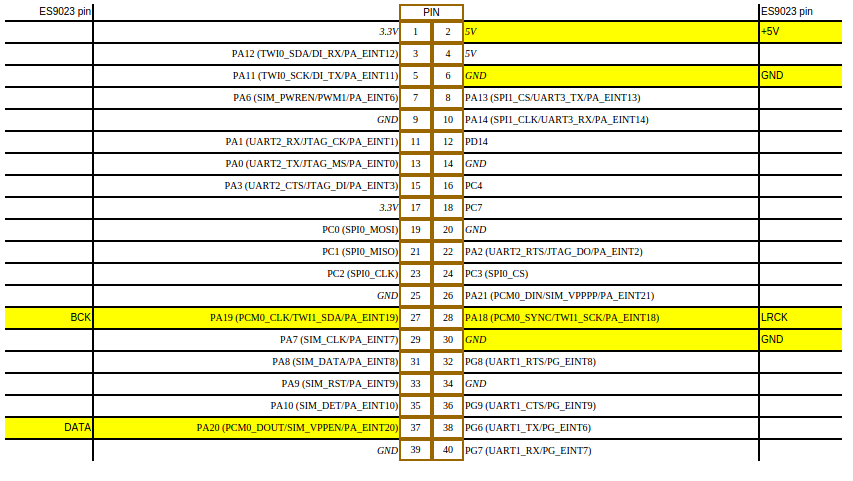
Short manual for connecting Orange Pi One to PCM5102 DAC.

Connect DAC as presented on the figure above:


OrangePi+ + OpenElec + DAC audio (PCM5102 or ES9023)

0. Install latest OpenElec image on your microSD card

1. Mount system for writing

mount -o remount,rw /flash

2. Using bin2fex convert script.bin to script.fex
Oryginal script.bin rename to script.bin.00

3. Edit script.fex :

[pcm0]
daudio_used = 1

[w1_para]
w1_used = 0

4. Using fex2bin convert script.fex do script.bin

5. In /storage/.config/ craete autostart.sh file and make it executable

6. Edit autostart.sh :
(
modprobe sunxi-daudiodma0
modprobe sunxi-snddaudio0
modprobe sunxi-daudio0
modprobe snddaudio0
) &

7. Connect your DAC (PCM5102 or ES9023)

8. Run OpenElec and configure sound source.

Source: [SOLVED] audio i2s with OpenElec – page 4 – Openelec – OrangePi – Powered by Discuz!